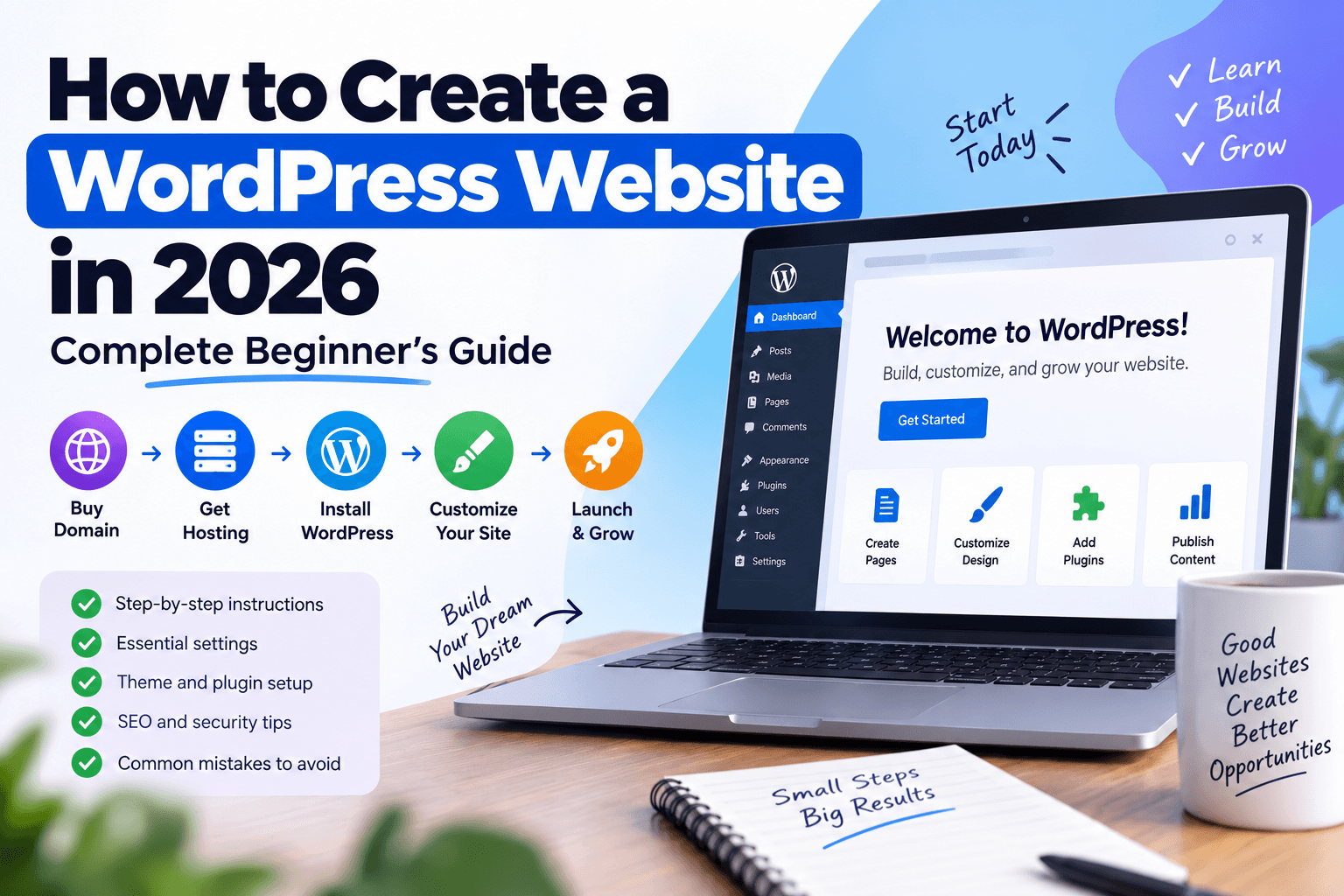
How to Create a WordPress Website in 2026: Complete Beginner's Guide
Creating a WordPress website in 2026 is much easier than it used to be.You don't need to learn programming before publishing your first website. You need a domain, suitable hosting, a WordPress installation, a clean design, essential settings, and a clear plan for what your website will accomplish.
But there is an important difference between simply getting WordPress online and building a website that is ready to grow.A website can technically be live within minutes and still have poor navigation, weak security, confusing URLs, missing important pages, slow performance, and no clear SEO foundation.
The goal isn't just to launch WordPress. The goal is to launch it correctly from the beginning.
This guide takes you through the process from choosing your domain to publishing your first article, while also explaining the decisions that can affect your website later.
Why Choose WordPress for Your Website?
WordPress remains one of the most flexible platforms for creating blogs, business websites, portfolios, publications, and content-driven websites.Its biggest advantage is control.You can choose your hosting provider, theme, plugins, design, content structure, and monetization strategy.WordPress also separates posts from pages, making it possible to maintain regular blog content alongside permanent website information such as About, Contact, Privacy Policy, and other important pages.
Another advantage is the enormous ecosystem of themes and plugins.However, flexibility comes with responsibility.Installing dozens of plugins or changing settings without understanding them can create unnecessary performance, compatibility, and security problems.
Why Choose WordPress for Your Website?
You need three basic components:
- A domain name
- Web hosting
- WordPress
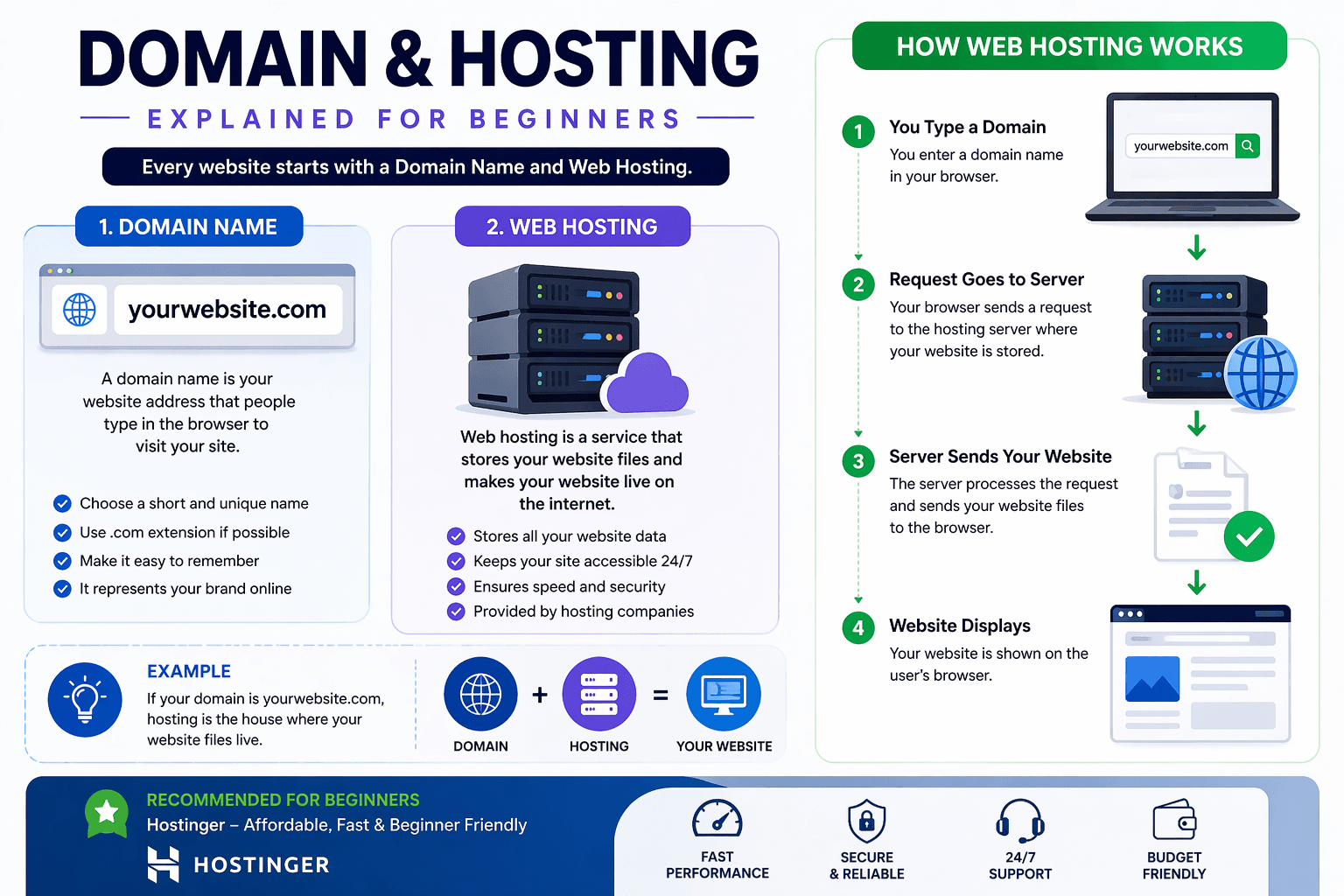
Your domain is the address visitors type into their browser.Hosting provides the server environment where your website runs.WordPress is the content management system you use to create and manage the website.WordPress documentation notes that many hosting companies provide WordPress-specific environments and automatic installation tools.
Before buying anything, decide what type of website you're building.A small blog has different requirements from an online store or a resource-heavy web application.
Choose a Domain Name Carefully
Your domain becomes part of your brand.Choose something that is:
- Easy to remember
- Easy to pronounce
- Easy to type
- Relevant to your brand
- Flexible enough for future content
Don't force keywords into the domain simply because you think it will improve SEO.A memorable brand can be more valuable than a domain stuffed with search terms.Avoid unnecessary hyphens, confusing spellings, and names that restrict your website to a topic you may eventually outgrow.Also check the domain's history before purchasing a previously used domain.
Choose the Right WordPress Hosting
Hosting is the infrastructure behind your website.A good hosting environment should provide reliable server performance, security features, backups, suitable resources, and support.But don't assume that the most expensive hosting plan is automatically the best.For a new blog with modest traffic, an appropriate shared or managed WordPress plan may be enough.As your traffic and technical requirements grow, you can consider a higher-resource plan or a different hosting environment.
Choose hosting based on your website's actual requirements—not simply on the promise of higher rankings.
WordPress confirms that any host meeting its technical requirements can be used to run WordPress.
Install WordPress
Most modern hosting dashboards provide a WordPress installer.The general process is:
- Log in to your hosting account
- Find the WordPress installation option
- Select your domain
- Enter your website name
- Create an administrator account
- Set a strong password
- Complete the installationWordPress itself describes installation as straightforward and notes that many hosts offer tools that automate the process.
If your host requires manual installation, you can follow the official WordPress installation documentation.After installation, visit your WordPress login page and enter your administrator credentials.
Configure the Basic WordPress Settings
Before publishing content, review your basic settings.
Go to:
Settings → General
Check:
- Site title
- Tagline
- WordPress address
- Site address
- Administration email
- Site language
- Time zone
Then check your permalink structure.A clean URL such as:/best-seo-tools/is easier to understand than a URL containing unnecessary parameters or post IDs.Your URL structure should be predictable and should not need to change repeatedly later.
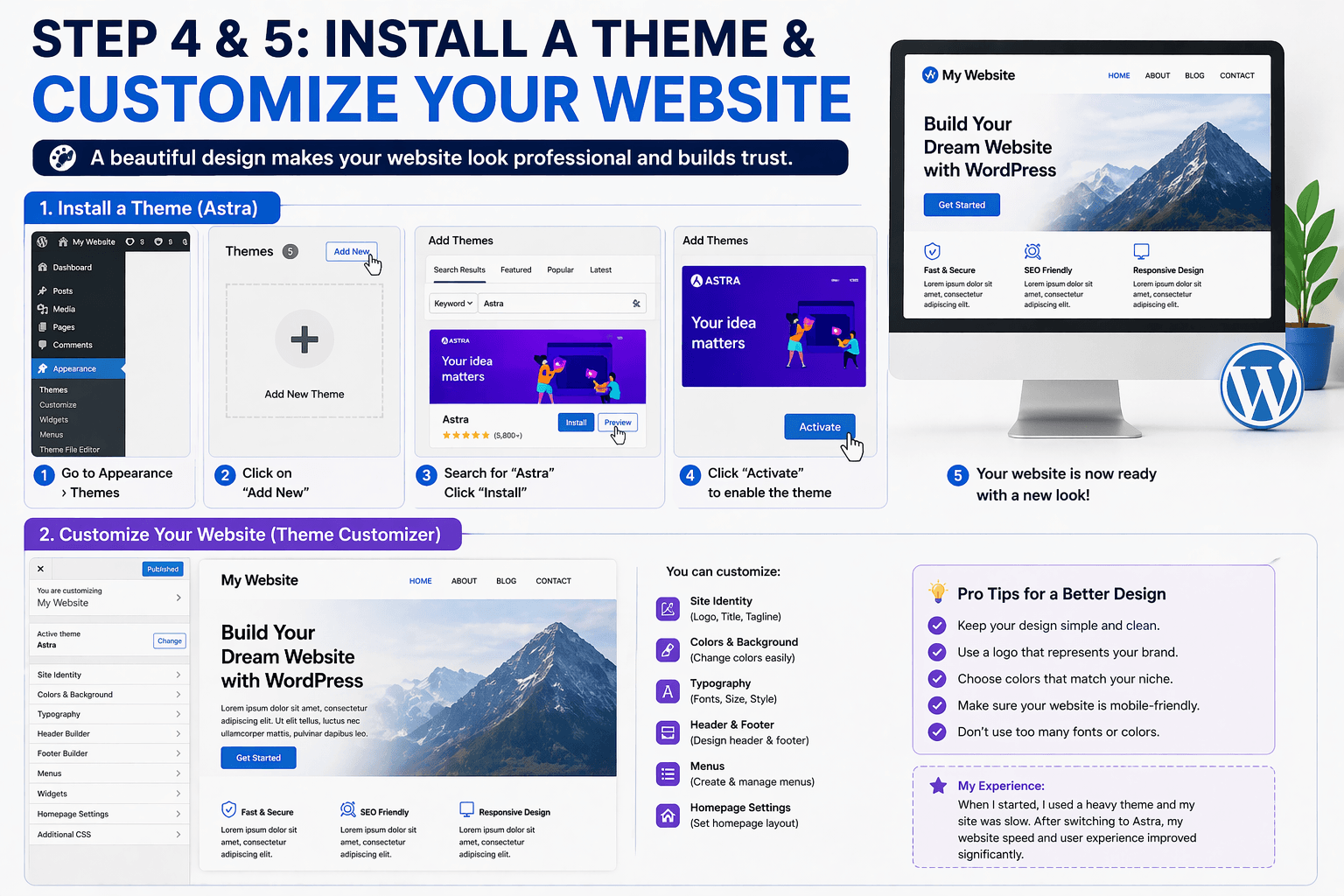
Choose a Lightweight WordPress Theme
Your theme controls much of the visual presentation of your website.For a new website, prioritize:
- Clean design
- Mobile responsiveness
- Good customization options
- Accessibility
- Regular maintenance
- Compatibility with current WordPress versions
Don't choose a theme simply because it contains hundreds of visual effects.Every additional design element can introduce complexity.Your visitors should be able to understand what your website is about immediately.
Customize Your Website
Now configure the visual identity.Set:
- Logo
- Brand colors
- Typography
- Header
- Navigation
- Footer
- Blog layout
- Sidebar, if needed
- Buttons
- Featured
-image style
Keep your design consistent.Using several unrelated fonts and excessive colors can make a professional website look unfinished.Mobile design deserves special attention.A layout that looks good on a desktop monitor can still be difficult to use on a phone.Test menus, buttons, forms, images, tables, and article spacing on smaller screens before publishing.
Install Only the Essential Plugins
Plugins extend WordPress functionality.You might need plugins for:
- SEO
- Caching
- Security
- Backups
- Contact forms
- Analytics
- Image optimization
But don't install plugins simply because someone recommends them.Before adding one, ask:
Does my website actually need this?Is it maintained?
Is it compatible with my setup?
Does another plugin already perform the same function?
A smaller, well-maintained plugin stack is usually easier to manage than a website filled with overlapping tools.

Set Up Your SEO Foundation
Install an SEO plugin if you need its features, then configure the fundamentals.Your SEO setup should cover:
- XML sitemap
- Search appearance
- Titles and descriptions
- Canonical URLs
- Indexing controls
- Schema where appropriate
- Social metadata
Then connect your website with Google Search Console.Don't expect an SEO plugin to make poor content rank.SEO tools help you manage technical and on-page elements; they don't replace useful information.Google's SEO guidance emphasizes creating helpful content for people rather than content designed primarily to manipulate search rankings.
Create Important Website Pages
Before publishing lots of articles, create the pages visitors may expect.Common examples include:
- About
- Contact
- Privacy Policy
- Terms and Conditions
- Disclaimer
- Affiliate Disclosure, when applicable
WordPress includes tools for creating and assigning a Privacy Policy page, but the generated guidance is only a starting point; website owners remain responsible for making the policy accurate for their actual data practices and applicable requirements.
Make these pages accessible through your navigation or footer where appropriate.
Plan Your Website Structure
This is where many beginners go wrong.Don't publish random articles without considering how they relate.Instead, organize content into clear topics.
For example:
SEO→ Keyword Research→ Technical SEO→ Internal Linking→ Search Console→ Content Optimization
This structure makes your website easier to navigate and gives you opportunities to connect related articles with internal links.Plan categories around meaningful topics rather than creating a new category for every article.
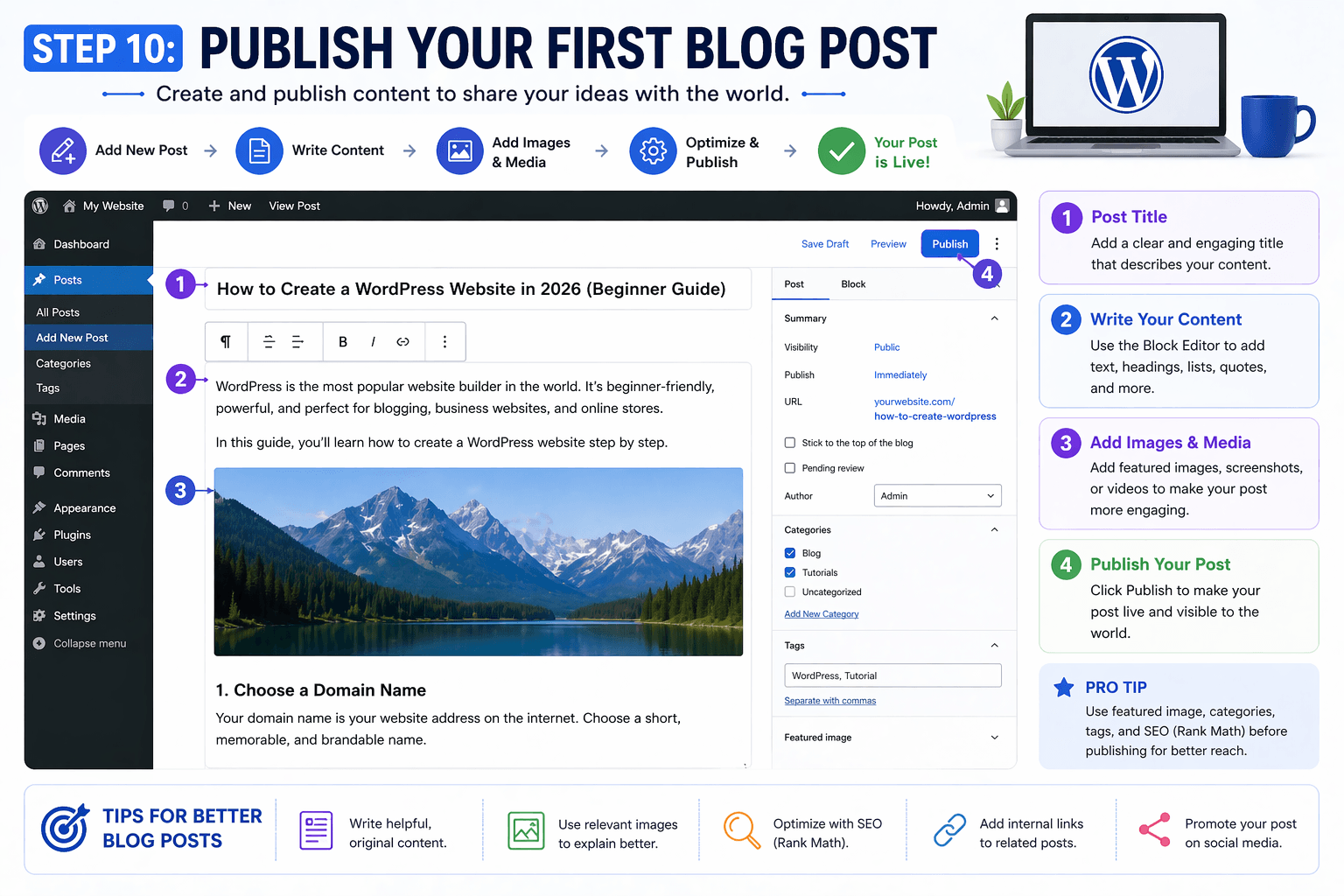
Publish Your First Blog Post
Now create your first article.Start with a specific search intent.Before writing, determine:
What is the reader trying to accomplish?
What information do they need?
What would make your article more useful than competing pages?
Then create a clear title, introduction, headings, examples, images, and conclusion.Use descriptive internal links where they genuinely help readers.Don't write an article simply to reach a particular word count.
A useful article is better than a long article filled with repetition.
Connect Google Search Console
Once your website is live, connect it to Google Search Console.It can help you understand:
- Search queries
- Impressions
- Clicks
- Average position
- Indexing
- Search visibility
This becomes particularly valuable as your website grows because you can identify which pages are receiving impressions and which queries are generating visibility.Use the data to improve existing content rather than assuming you always need to publish more articles.
Secure Your WordPress Website
Security should begin on launch day.Use:
- Strong administrator passwords
- Updated WordPress
- Updated themes
- Updated plugins
- Reliable backups
- HTTPS
- Limited administrator accounts
Avoid downloading premium themes or plugins from suspicious websites.Keep backups separate enough that a website problem does not destroy both your site and its only backup.WordPress documentation also provides ongoing guidance around installation, maintenance, and security.
Common Mistakes Beginners Should Avoid
Don't make your website complicated before you understand what it needs.Common mistakes include:
Installing too many plugins
Changing URLs repeatedly
Ignoring mobile usability
Publishing thin content
Using enormous images
Skipping backups
Ignoring updates
Creating confusing navigation
Installing multiple plugins that perform the same task
Trying to optimize every sentence for keywords
Another common mistake is expecting immediate traffic.Publishing a website is the beginning of the process, not the finish line.
Final Verdict
Creating a WordPress website in 2026 is technically simple.The difficult part is building something worth visiting.Start with a sensible domain and reliable hosting.Install WordPress correctly.Choose a clean theme.
Configure your core settings.Install only the plugins you genuinely need.Create essential pages.Build a logical content structure.Set up your SEO foundation.Connect Search Console.Then publish useful content consistently.You don't need a complicated website on day one.
Build a simple foundation first, measure what happens, and improve the website as your audience and requirements grow.
That approach gives a beginner something far more valuable than a website that merely looks finished: a website with a foundation capable of growing.