How to Speed Up WordPress Website (Proven Methods)
A slow website can destroy your traffic, rankings, and user experience. In 2026, website speed is not optional — it’s a ranking factor.
I personally struggled with slow loading speed when I started my WordPress site. Pages were taking 5–6 seconds to load, and my bounce rate was very high.
After applying the methods in this guide, my website speed improved significantly — and so did my traffic.
In this article, I’ll show you proven methods to speed up your WordPress website, even if you are a beginner.
📑 Table of Contents
- Why Website Speed Matters
- How to Check Your Website Speed
- Proven Methods to Speed Up WordPress
- 1. Use Fast Hosting
- 2. Use a Lightweight Theme
- 3. Use Caching Plugin
- 4. Optimize Images
- 5. Remove Unnecessary Plugins
- 6. Use CDN
- 7. Minify CSS, JS, HTML
- 8. Clean Your Database
- Common Speed Mistakes
- Pro Tips for Maximum Speed
- Final Thoughts
Why Website Speed Matters
- Improves Google ranking
- Reduces bounce rate
- Better user experience
- Higher conversions
How to Check Your Website Speed
Before optimizing, check your speed using tools:
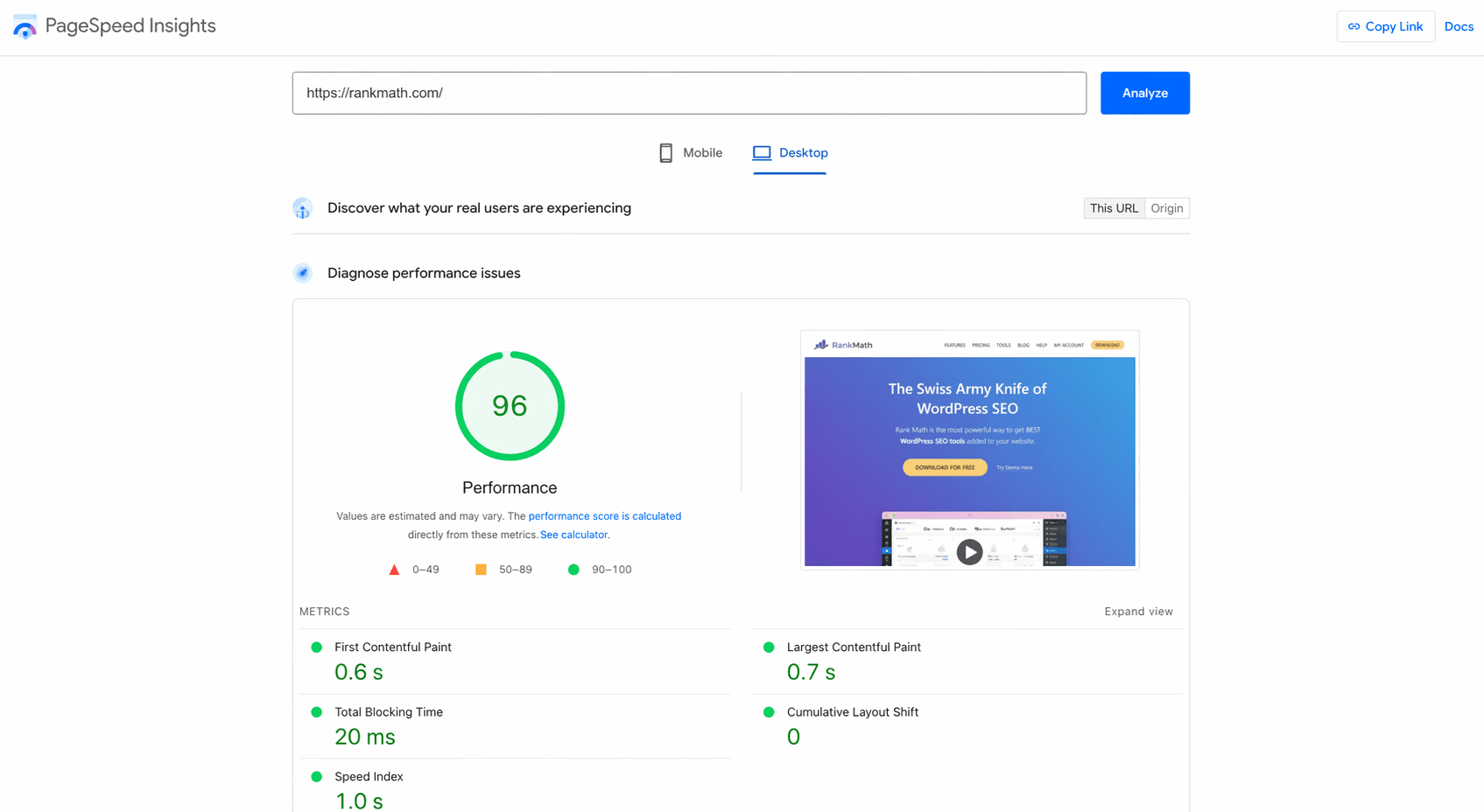
My Experience: My initial score was below 50. After optimization, it crossed 90.
Proven Methods to Speed Up WordPress
1. Use Fast Hosting
Hosting plays a major role in website speed.
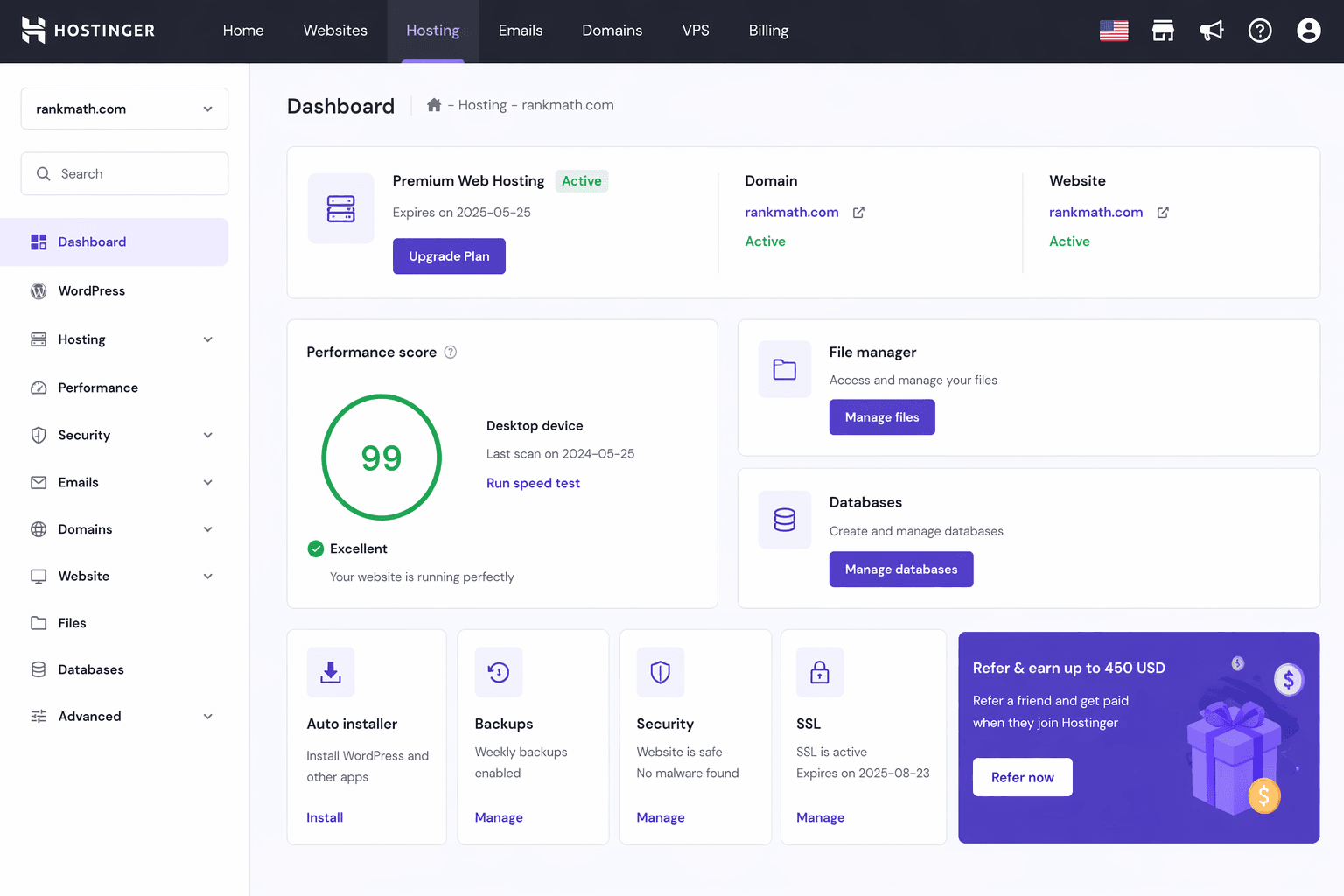
I recommend Hostinger for beginners because it offers fast servers and good performance.
Tip: Avoid very cheap hosting — it slows down your site.
2. Use a Lightweight Theme
Heavy themes slow down your website.
- Use Astra
- GeneratePress
These themes are fast and SEO-friendly.
3. Use Caching Plugin
Caching improves loading speed significantly.
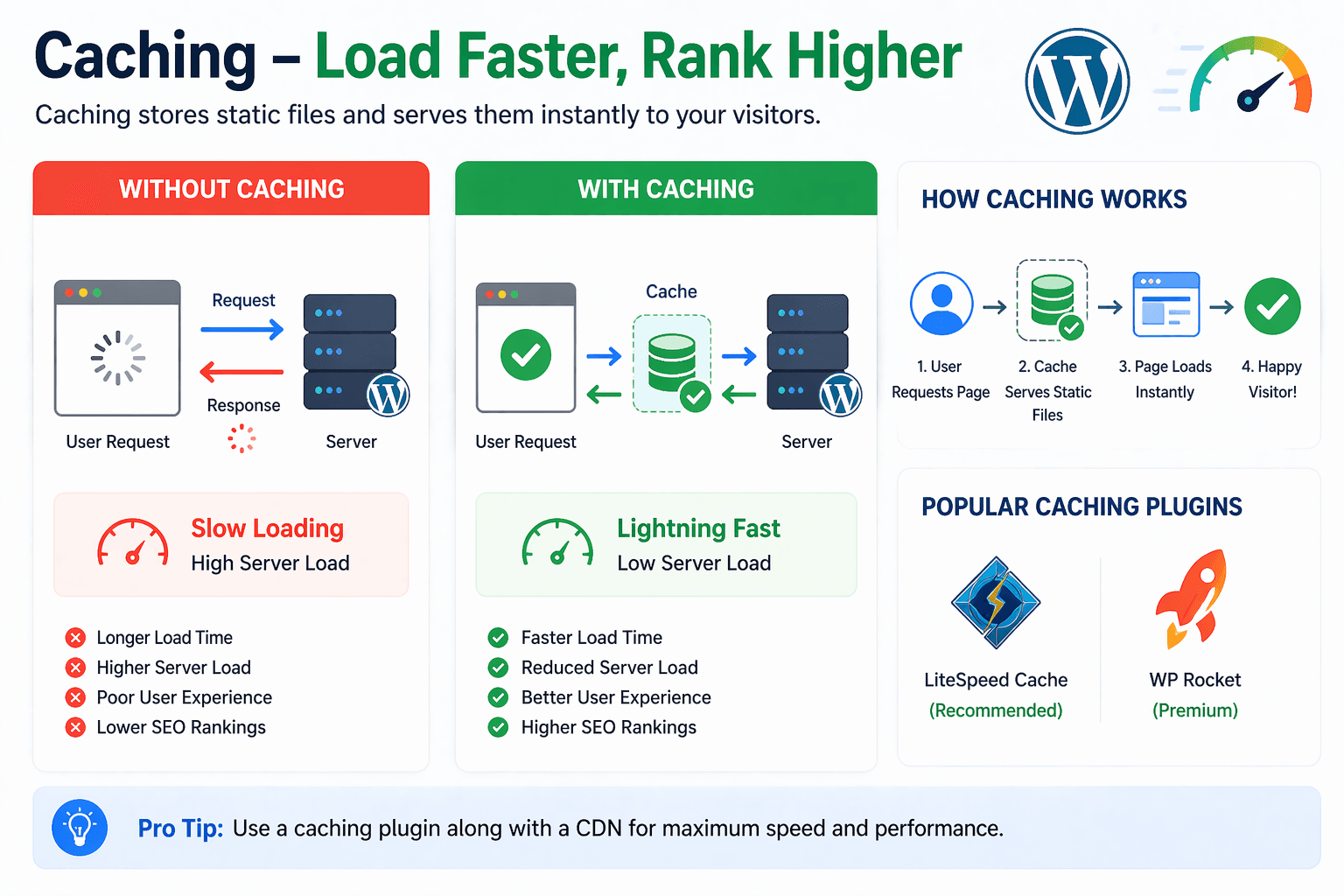
- LiteSpeed Cache (Best)
- WP Rocket
Go to Plugins → Add New → Install and activate.
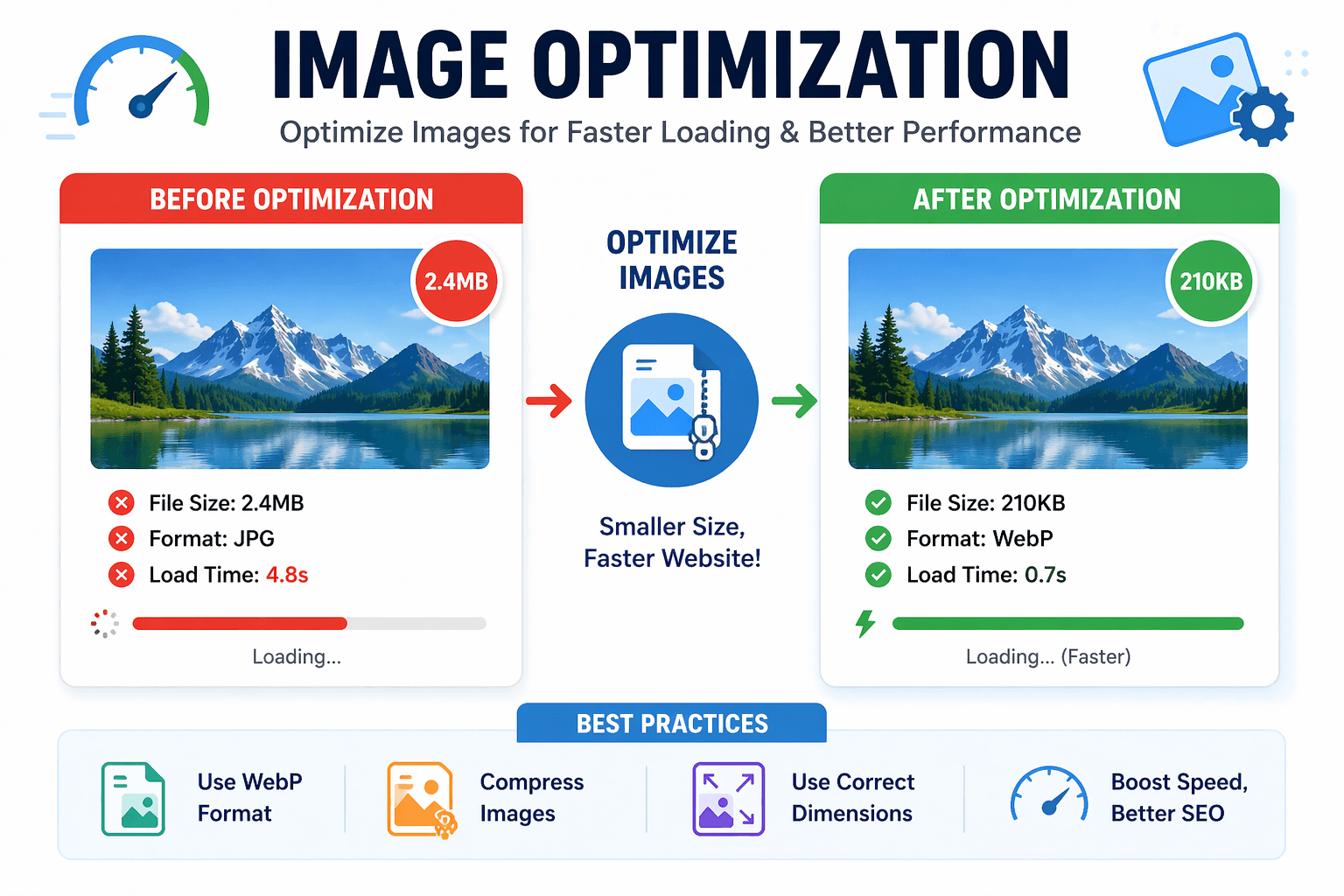
4. Optimize Images
Large images slow down your site.
- Use WebP format
- Compress images
- Use tools like TinyPNG
5. Remove Unnecessary Plugins
Too many plugins = slow website.
Keep only essential plugins.
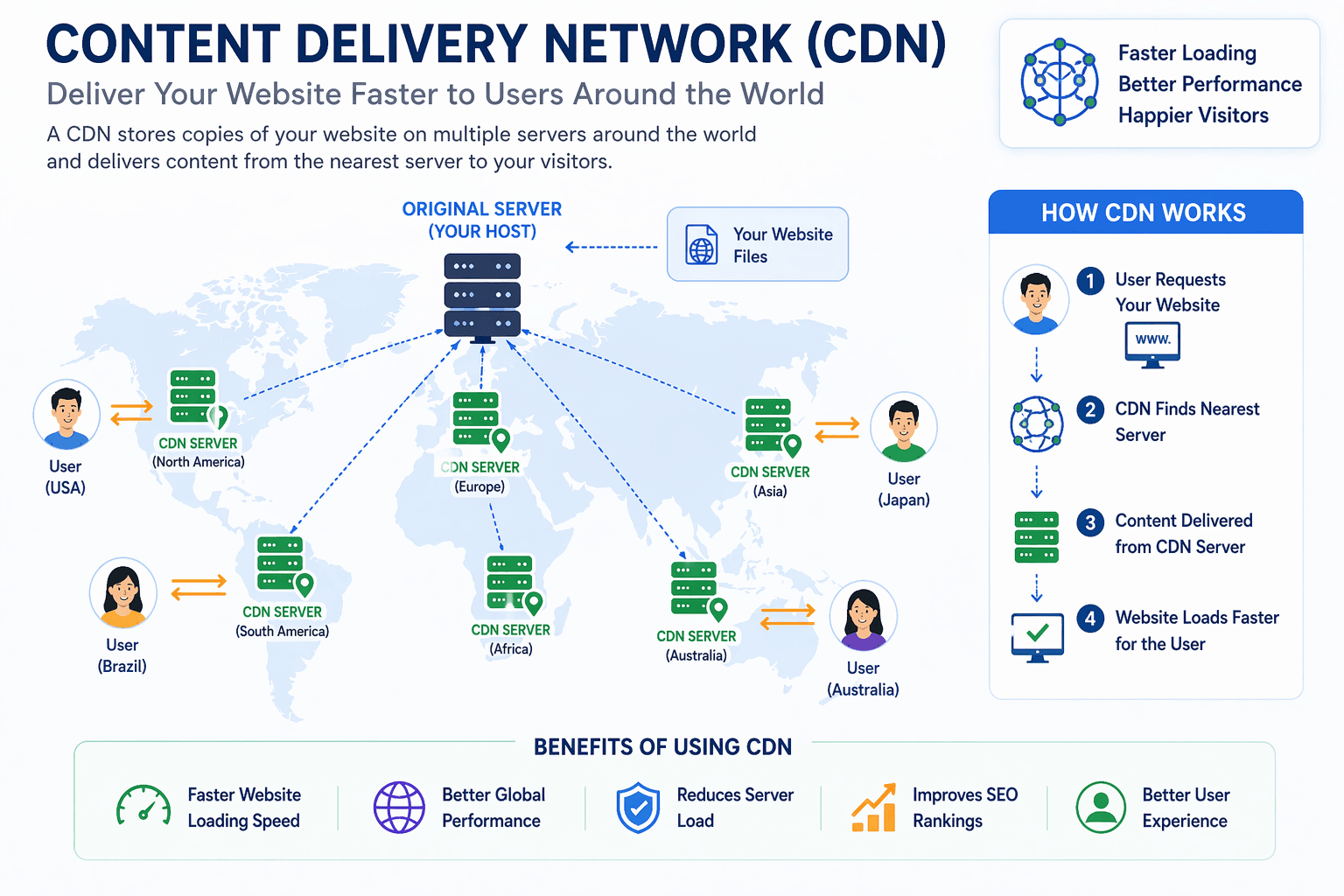
6. Use CDN (Content Delivery Network)
CDN helps load your site faster globally.
- Cloudflare (Free)
7. Minify CSS, JS, HTML
Minification reduces file size and improves speed.
You can enable this in caching plugins.
8. Clean Your Database
Remove unwanted data like revisions and spam comments.
Use plugins like WP-Optimize.
Common Speed Mistakes
- Using heavy themes
- Uploading large images
- Too many plugins
- Not using caching
Pro Tips for Maximum Speed
- Keep website simple
- Use fast hosting
- Optimize images regularly
- Monitor speed monthly
Final Thoughts
Speed optimization is not a one-time task — it’s an ongoing process.
If you apply these proven methods, your WordPress website will load faster and perform better in search engines.
I’ve personally tested these methods, and they work.
Start optimizing your website today and see the difference.