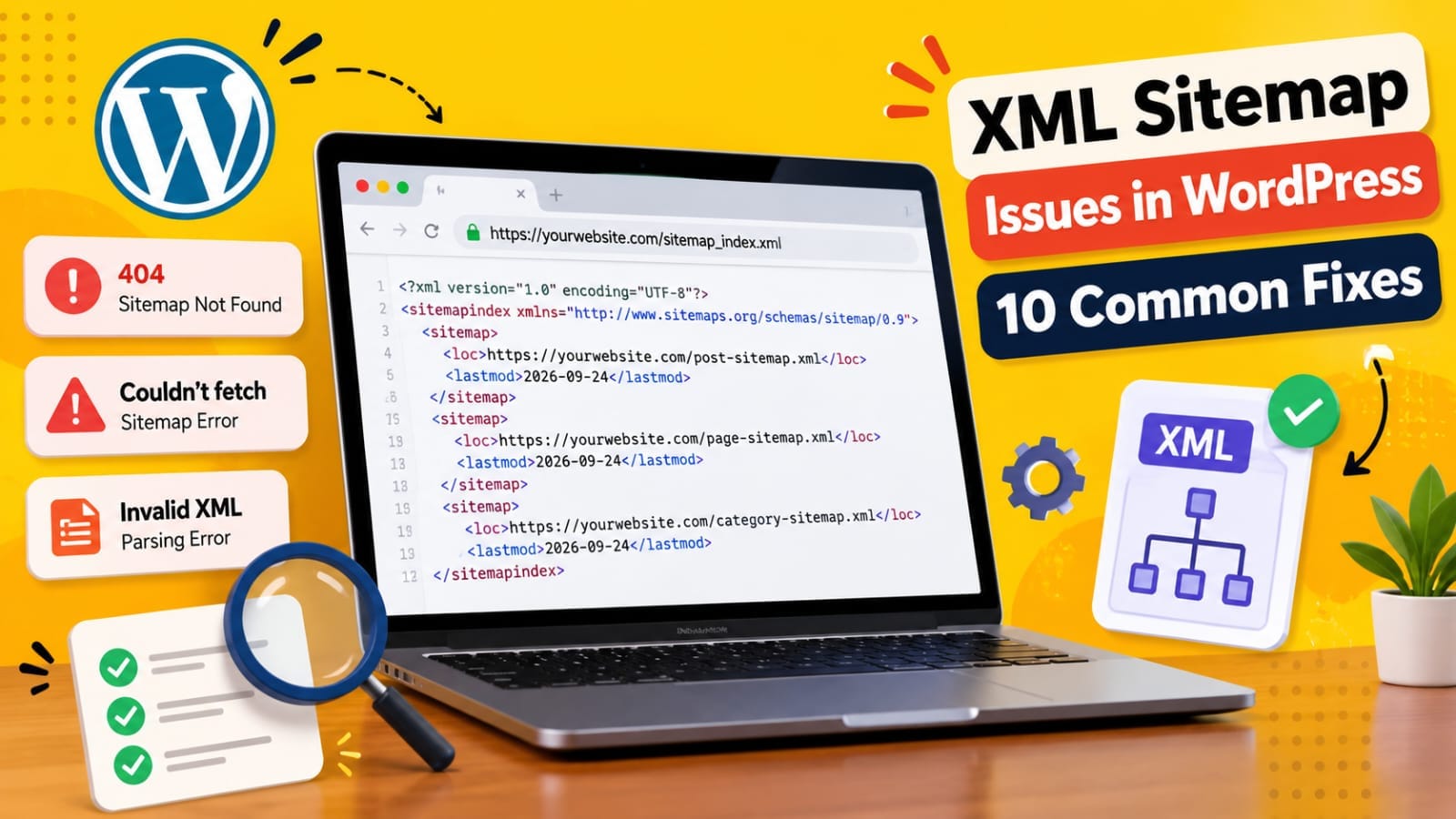
XML Sitemap Issues in WordPress: 10 Common Fixes
An XML sitemap helps search engines discover the important URLs on your WordPress website. But when a sitemap returns an error, shows outdated URLs, cannot be fetched, or suddenly stops working, it can become difficult to identify the real cause.The important thing to understand is that a sitemap problem is not always a Google problem.
The cause can be WordPress settings, an SEO plugin, caching, Cloudflare, redirects, robots.txt, incorrect URLs, server configuration, or even invalid output before the XML declaration.WordPress has a native XML sitemap system, and its standard core sitemap index is wp-sitemap.xml. SEO plugins such as Rank Math or Yoast can instead provide their own sitemap system.
This guide explains 10 common WordPress XML sitemap problems and how to troubleshoot them step by step.
1. Check the Correct Sitemap URL
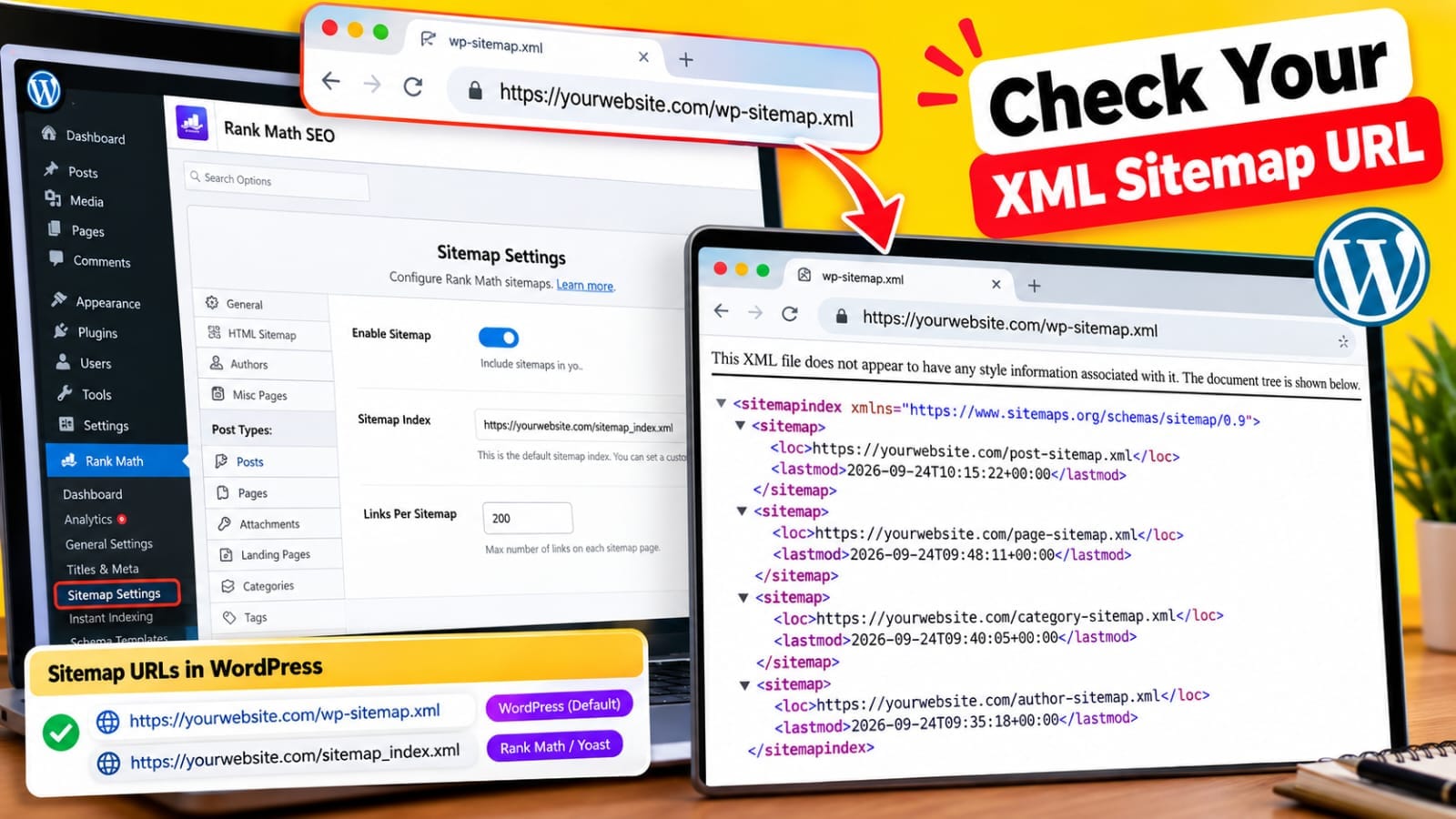
The first thing to check is whether you are opening the correct sitemap.WordPress core uses:
https://example.com/wp-sitemap.xml
However, an SEO plugin may generate something different, such as:
https://example.com/sitemap_index.xml
For example, an SEO plugin can replace or take over WordPress's native sitemap functionality.
Therefore, don't assume that every WordPress website should use /sitemap.xml.Check which system is generating your sitemap.
If Rank Math is generating the sitemap, use the sitemap URL shown inside Rank Math.
If WordPress native sitemaps are active, check /wp-sitemap.xml.The first troubleshooting step is identifying the actual sitemap generator.
2. Make Sure Your Website Is Public to Search Engines
WordPress has a setting that can disable search-engine visibility.
Go to:
WordPress → Settings → Reading
Check the option related to discouraging search engines from indexing the site.WordPress's native sitemap functionality depends on the site's public visibility setting. WordPress documentation shows that native sitemaps are enabled by default for public sites, while disabling the sitemap functionality can cause the sitemap endpoint to return a 404.
If you accidentally enabled a search-engine visibility restriction during development, your sitemap may not behave as expected.After changing the setting, save it and test the sitemap again.
3. Flush Permalinks
Sometimes the sitemap itself is fine, but WordPress rewrite rules are causing the URL to return an unexpected response.
A simple troubleshooting step is:
WordPress → Settings → Permalinks → Save Changes
You don't necessarily need to change your permalink structure.Simply saving the settings can refresh WordPress rewrite rules.Then test the sitemap again.
This is particularly useful when:
The sitemap previously worked
You changed permalink settings
You migrated the website
You changed plugins
The sitemap suddenly returns 404
If the sitemap still doesn't work, continue with the next checks rather than repeatedly resaving permalinks.
4. Clear Sitemap and Website Caches
Caching is one of the most common reasons a sitemap can appear outdated.A sitemap may be dynamically generated, but a caching layer can serve an older version.Check caching at multiple levels:
WordPress caching plugin
Server cache
CDN cache
Cloudflare cache
Hosting cache
Object cache
For example, Rank Math support discussions have documented sitemap problems caused by cached sitemap responses, including situations where deleted URLs remained in a sitemap or newly created URLs were missing. Their troubleshooting recommends flushing sitemap cache and excluding sitemap files from caching.
After clearing cache, open the sitemap in a private browser window.Then check whether the current URLs appear.Don't assume that clearing only your WordPress plugin cache clears every caching layer.
5. Whether the Sitemap Returns XML
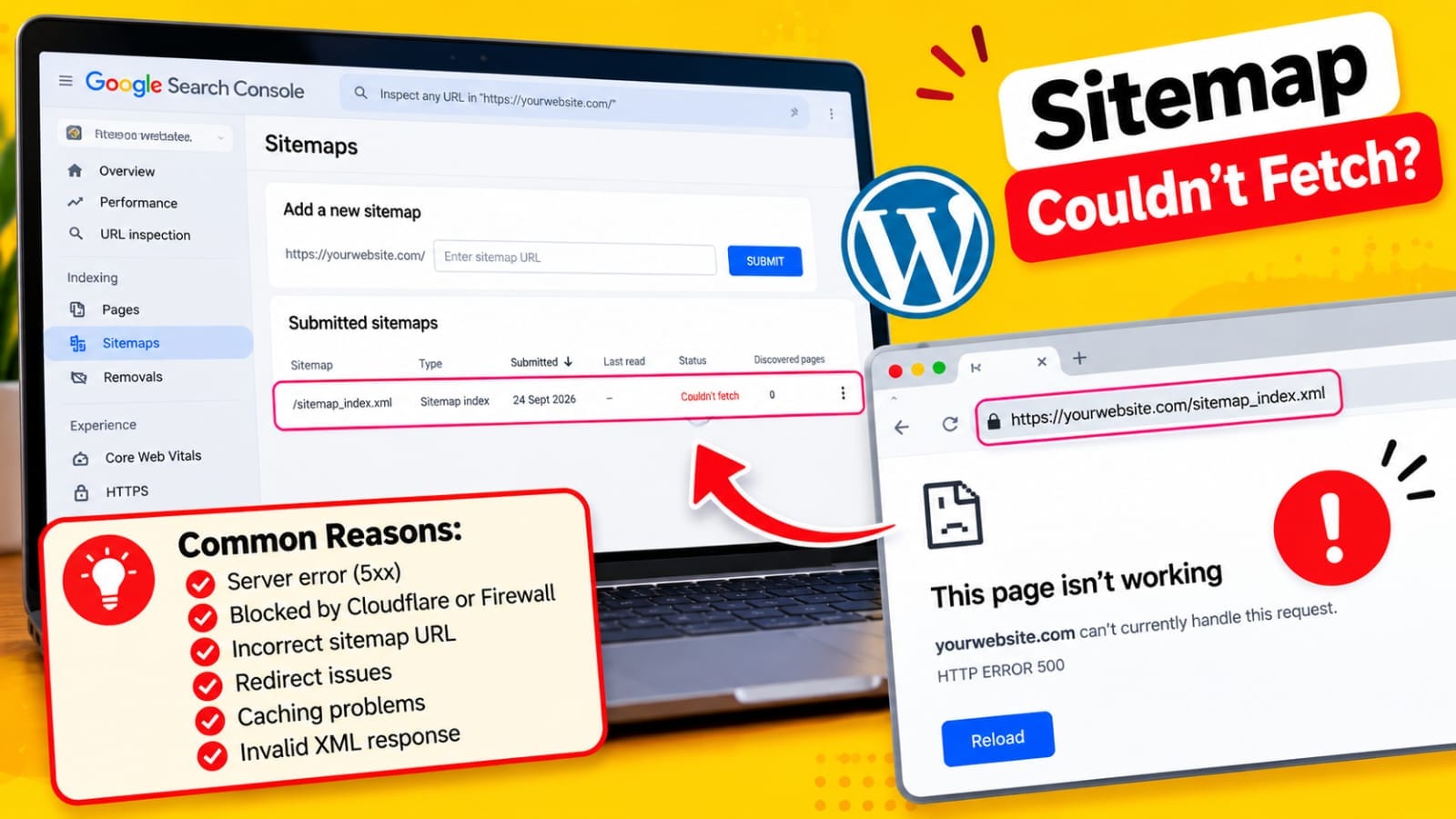
A sitemap should return actual XML—not your homepage, a WordPress error page, or an HTML security page.Open the sitemap directly in your browser.
Check whether you see XML content such as:
<?xml version="1.0" encoding="UTF-8"?>and sitemap URLs.
A serious problem occurs when the sitemap URL returns HTML instead.
For example:
200 OK but homepage HTML
403 Forbidden
404 Not Found
500 Internal Server Error
Login page
Security challenge
Hosting error page
One WordPress support case showed a sitemap returning an HTML response with the wrong content type because the server was blocking the request with a 403.
So when Google says “Couldn't fetch,” don't immediately assume the sitemap XML itself is wrong.First determine what the URL actually returns.
6. Check for Invalid XML or Extra Characters
Sometimes the sitemap URL loads, but the XML itself is invalid.One example is extra whitespace or another character appearing before the XML declaration.
For example, this can cause a parsing problem:
[extra character]<?xml version="1.0" encoding="UTF-8"?>
The XML declaration should appear correctly at the beginning of the response.A recent WordPress support case documented a sitemap where an extra newline appeared before the XML declaration, causing strict XML validation to fail.
Possible causes can include:
Plugin output
Theme code
PHP files containing unexpected characters
Server configuration
Sitemap customization
Plugin conflicts
If you see an XML parsing error, don't simply resubmit the sitemap repeatedly in Search Console.Find out why the server is producing invalid XML first.
7. Check Robots.txt
Your robots.txt file should not accidentally block important sitemap URLs or the pages you want search engines to crawl.
Open:
https://example.com/robots.txt
Look for:
Disallow rules
Sitemap declaration
Unexpected blocking rules
Plugin-generated changes
WordPress's native sitemap functionality can add the sitemap index to robots.txt automatically.
A typical robots.txt may contain something like:
User-agent:
*Disallow:Sitemap: https://example.com/wp-sitemap.xml
The exact configuration can differ depending on your SEO plugin.Don't blindly copy a robots.txt file from another website.A rule that makes sense for one website can accidentally block important content on another.
8. Check Your HTTP and HTTPS Versions
Another common problem happens after moving from HTTP to HTTPS.For example:
http://example.com/sitemap_index.xml may redirect to:
https://example.com/sitemap_index.xml
This can be normal, but your WordPress and sitemap configuration should consistently use HTTPS.
Check:
WordPress → Settings → General
Verify:
WordPress Address (URL)Site Address (URL)
Both should normally use the correct HTTPS version when your website is configured for HTTPS.
WordPress support troubleshooting for sitemap URL problems after HTTPS migrations has specifically recommended checking these URLs and clearing plugin, server, and CDN caches.
Also check whether Cloudflare or another proxy is creating unexpected redirect behavior.
9. Check Your SEO Plugin and Sitemap Conflicts
Running multiple systems that try to control XML sitemaps can create confusion.For example, you might have:
Rank Math sitemap
Yoast sitemap
A dedicated sitemap plugin
WordPress native sitemap
Custom sitemap code
You don't necessarily want several plugins trying to manage the same sitemap URLs.Check which plugin is generating your sitemap.Then review its sitemap settings.
If you recently:
Changed SEO plugins
Disabled an SEO plugin
Migrated from one SEO plugin to another
Changed sitemap settings
Added a sitemap plugin
test the sitemap again.
One clear sitemap system is easier to troubleshoot than multiple overlapping systems.Also remember that an SEO plugin may intentionally exclude URLs that are noindexed or otherwise unsuitable for the sitemap.
10. Check Google Search Console Correctly
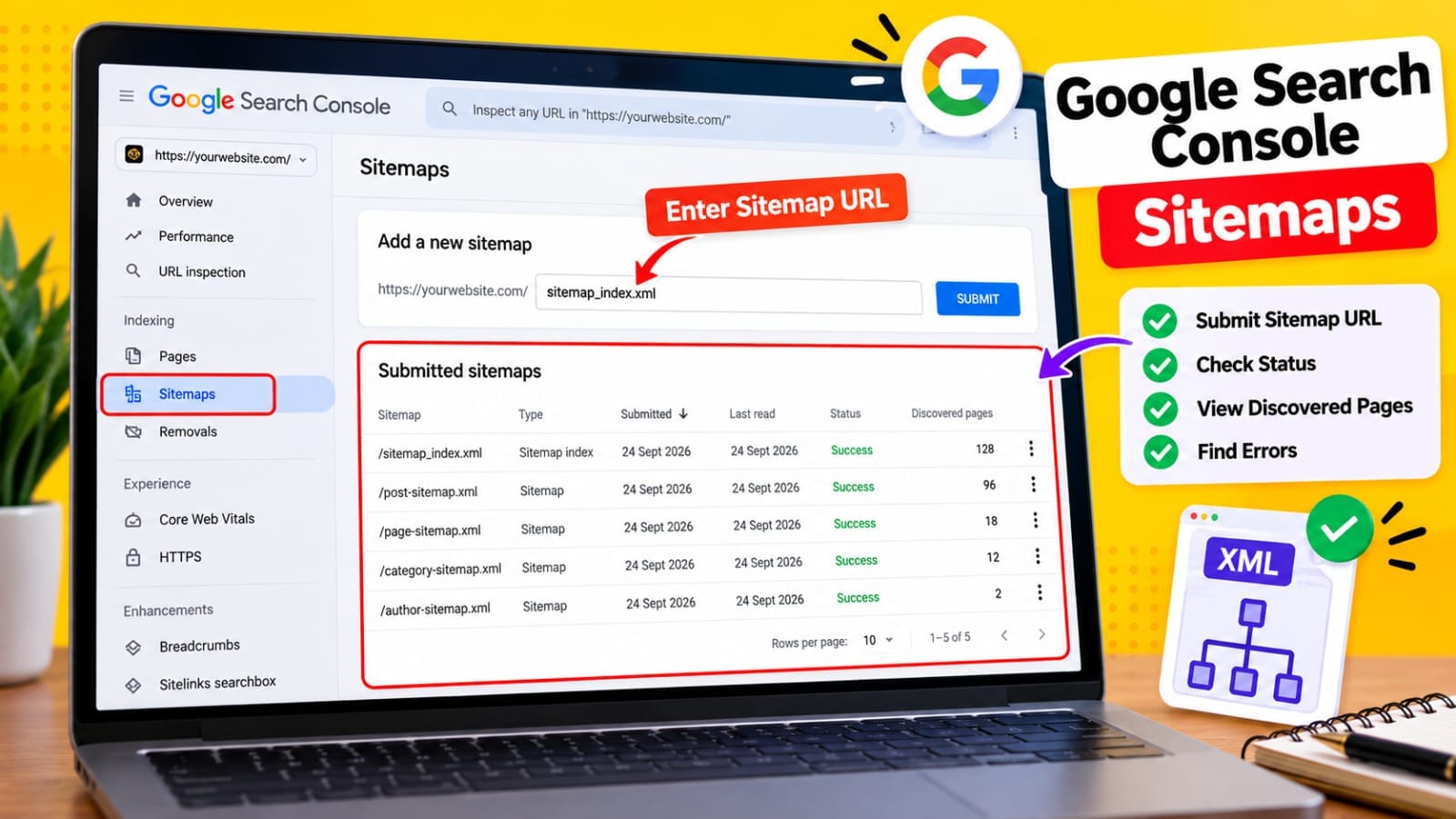
Once the sitemap works normally in your browser, go to:Google Search Console → Indexing → Sitemaps
Submit the sitemap URL that your website actually uses.
For example:
https://example.com/sitemap_index.xml
or:
https://example.com/wp-sitemap.xml
Then check:
Sitemap statusLast read
Discovered URLs
Errors
Whether Google can fetch the sitemap. If Google reports an error, first test the sitemap URL yourself.
There is an important difference between:
“Google cannot fetch my sitemap.”
and:
“Google fetched my sitemap but some URLs aren't indexed.”
The first is primarily a sitemap accessibility problem.The second can be an indexing, quality, canonicalization, crawling, or other URL-level issue.Submitting the sitemap repeatedly won't fix an underlying server or XML problem.
What If the Sitemap Contains Old or Missing URLs?
Don't panic if the sitemap doesn't immediately reflect every recent change.
First check whether the sitemap is cached.
Then confirm that:
The page is published
The page is indexable
The page isn't noindexed
The page has the expected canonical URL
The sitemap generator is active
Cache has been cleared
A sitemap is not supposed to contain every URL on your website.It should primarily help search engines discover the URLs you want crawled and indexed.
Final XML Sitemap Troubleshooting Checklist
Before resubmitting a broken sitemap, check:
Correct sitemap URL
Correct sitemap generator
Website is publicly visible
Permalinks are working
Sitemap returns XML
HTTP status is successful
No HTML error page is returned
No XML parsing errors
Cache has been cleared
Sitemap isn't blocked by robots.txt
HTTPS URLs are correct
Redirects work correctly
SEO plugin isn't conflicting with another sitemap system
Important URLs appear in the sitemap
Google Search Console can fetch the sitemap
The most important thing is to troubleshoot the sitemap from the outside in.First determine what the URL returns. Then identify which system generates it. Then check caching, WordPress settings, plugins, redirects and server behavior.Once the sitemap itself is accessible and valid,
Search Console becomes much more useful for investigating the next question:
which URLs Google discovered, crawled, indexed, or excluded?
A sitemap can help Google discover your content, but fixing a sitemap does not guarantee that every URL will be indexed or rank in search results.
My Practical Experience
While working on my own website, I found that sitemap problems can be surprisingly confusing because the sitemap may appear to work sometimes while Search Console reports problems. I had to look beyond Search Console and check the actual sitemap URL, sitemap structure, caching, redirects, WordPress settings, and the SEO plugin generating the sitemap.The biggest lesson was not to immediately assume that Google Search Console was the root cause.
A better troubleshooting sequence is:
Open sitemap → identify generator → check HTTP response → check XML → clear cache → check robots.txt → check HTTPS/redirects → check plugin conflicts → test again in Search Console.That approach makes it much easier to isolate the actual problem.