How to Find Which WordPress Plugin Is Slowing Your Website
A WordPress website can become noticeably slower as you install more plugins. But the problem is not simply having “too many plugins.” One lightweight plugin can sometimes create fewer problems than a single poorly optimized plugin that runs expensive database queries, loads unnecessary JavaScript, makes external API requests, or performs heavy processing on every page.
The real challenge is finding the plugin responsible.Instead of randomly deleting plugins, you need to identify whether the slowdown is coming from the frontend, database, PHP execution, external requests, theme, hosting, or a combination of these factors.This guide shows you how to investigate the problem systematically.
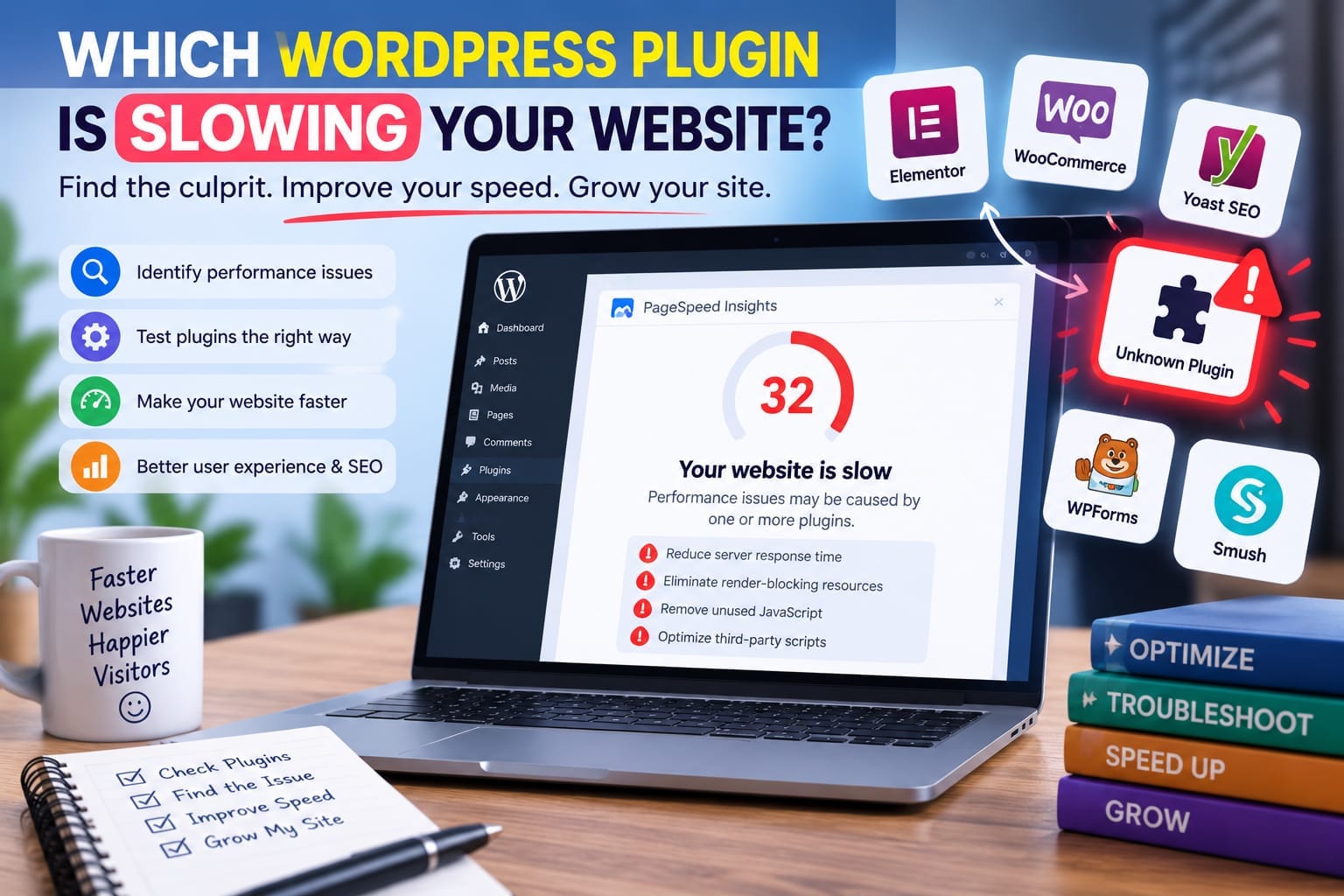
Why a WordPress Plugin Can Slow Down Your Website
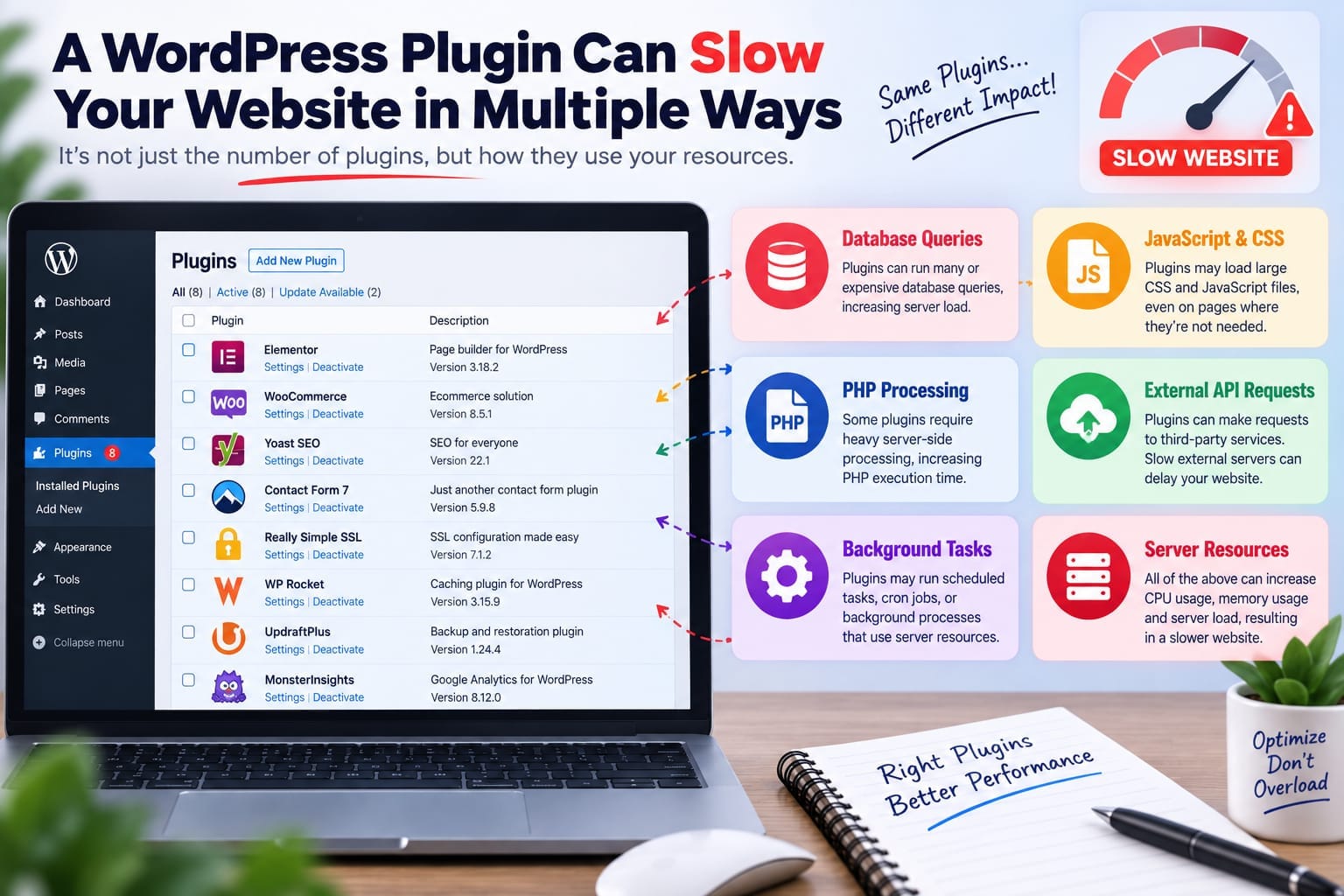
Plugins extend WordPress by adding functionality, but that functionality can require additional resources.A plugin may slow your website by:
- Running expensive database queries
- Loading JavaScript and CSS on pages where they are not needed
- Making requests to external APIs
- Running background processes
- Adding unnecessary database records
- Increasing PHP execution time
- Creating conflicts with your theme or another plugin
- Performing poorly on specific pages such as WooCommerce checkoutThis is why counting plugins alone is not a reliable performance diagnosis.
A website with 25 well-developed plugins can potentially perform better than one with 10 poorly optimized plugins.
How to Find Which WordPress Plugin Is Slowing Your Website
Before blaming a plugin, establish a baseline.Test your website while logged out and compare several different types of pages:
- Homepage
- Blog post
- Category/archive page
- Contact page
- Any important landing page
- WooCommerce product or checkout page, if applicableUse a consistent testing environment.
If only one page is slow, the problem may be related to that page rather than your entire plugin stack.For example, if your homepage loads quickly but your checkout page is extremely slow, removing your SEO plugin may accomplish nothing.
Use Query Monitor to Find the Problem
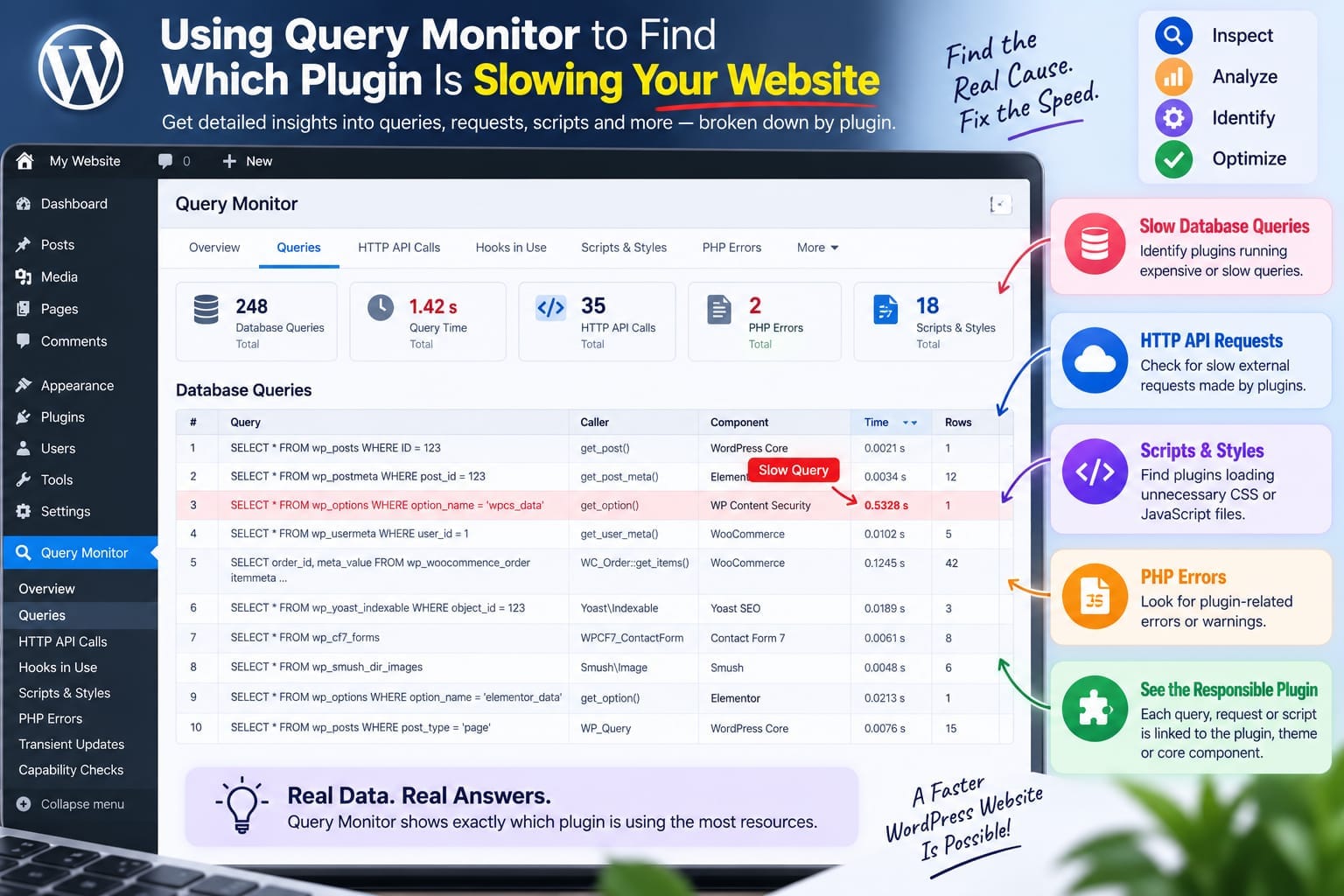
One of the most useful tools for investigating WordPress performance is Query Monitor.It can show database queries, PHP errors, hooks and actions, HTTP API requests, scripts, stylesheets, and other information. More importantly, much of this information can be narrowed down by plugin, theme, or function.Install Query Monitor temporarily while investigating the problem.After activating it, open the slow page while logged into WordPress.You can then inspect the information displayed in the WordPress admin toolbar.Look for:
- Slow database queries
- Large numbers of database queries
- Long PHP execution
- Slow HTTP requests
- Plugin-related errors
- Excessive scripts or styles
- Queries attributed to specific plugins
Do not immediately assume that the plugin with the largest number of queries is automatically the culprit.One plugin may make 100 very fast queries while another makes five extremely slow queries.The important question is:
Which component is consuming meaningful resources?
Compare Plugins Instead of Guessing
A useful investigation is to compare your website before and after disabling a suspected plugin.For example:
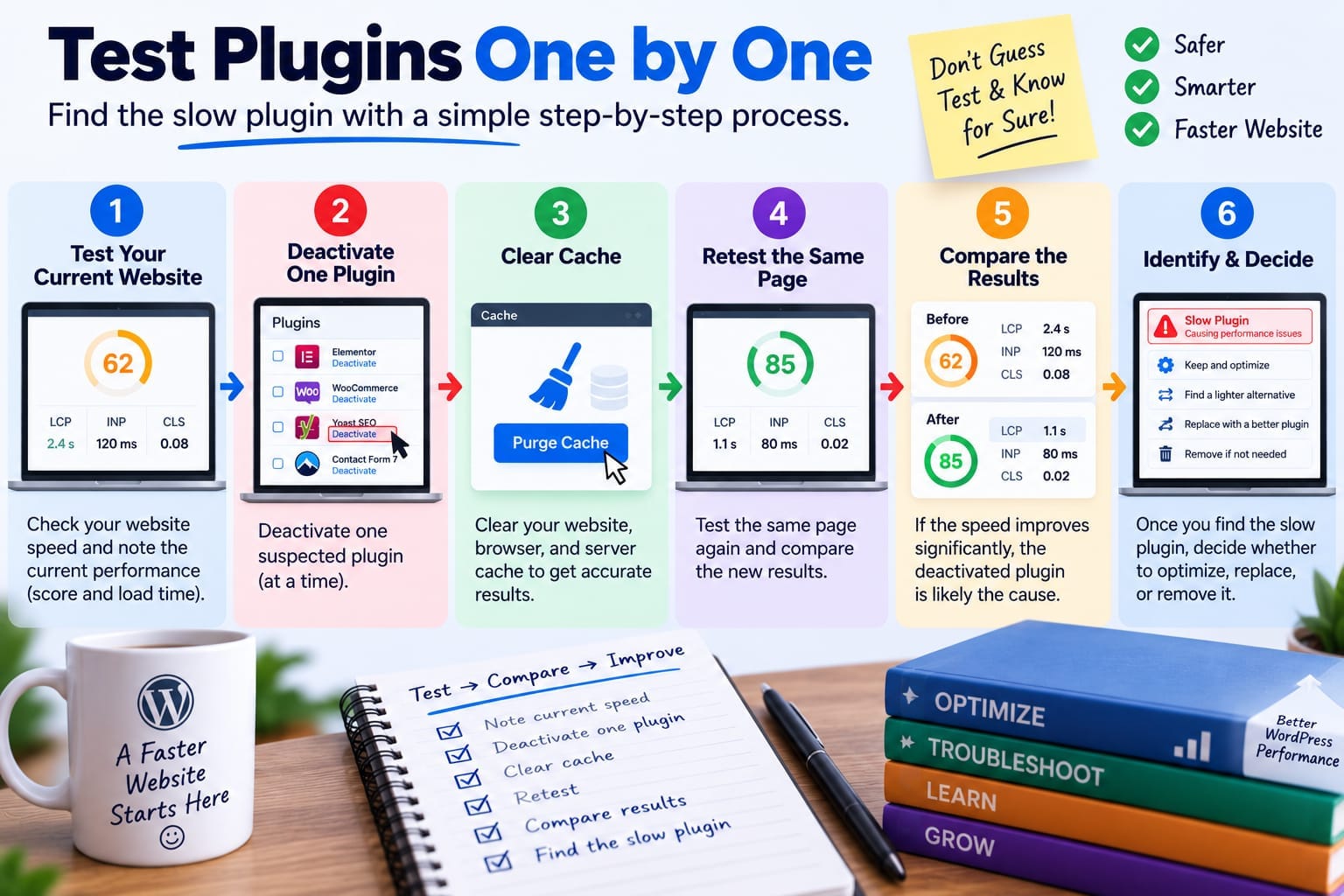
1. Record the current performance.
2. Deactivate one suspected plugin.
3. Clear the relevant cache.
4. Test the same page again.
5. Compare the results.
6. Reactivate the plugin.
7. Repeat with another suspect.
This is essentially a controlled test.Avoid disabling several plugins simultaneously because you will not know which one actually changed the result.
Plugin Comparison: What Should You Look At?
Check Whether the Plugin Loads Assets Everywhere
A common performance problem is unnecessary frontend assets.Imagine you have a form plugin, but your blog posts load the plugin's JavaScript and CSS even when there is no form on the page.The visitor may never use that functionality, yet the browser still has to process additional resources.The same issue can happen with:
- Slider plugins
- Page builders
- Popup plugins
- Social sharing plugins
- Form plugins
- Analytics integrations
- WooCommerce extensions
Use your browser's developer tools or a performance analysis tool to inspect loaded scripts and styles.If a plugin loads large resources across your entire website when they are only needed on a few pages, it deserves investigation.
Check External API Requests
Not every performance problem comes from your server.Some plugins communicate with external services.For example, a plugin might request:
- Analytics data
- Social media information
- Maps- Payment services
- Email services
- Security databases
- AI APIs
- Third-party marketing platforms
If an external server responds slowly, your WordPress request can also be affected.Query Monitor can help identify HTTP API requests and their response times.This is particularly important when your website suddenly becomes slow without any major design changes.
Test Plugins One at a Time
The safest practical troubleshooting method is controlled plugin testing.Start with plugins that are:
- Recently installed
- Recently updated
- Known to perform heavy processing
- Connected to external services
- Used only on certain pages
- Showing errors
- No longer necessary
Deactivate one plugin at a time and retest.Do not permanently delete a plugin simply because performance improves after disabling it.
First determine whether you actually need its functionality.If you do, look for:
- A lighter alternative
- Better configuration
- Selective asset loading
- Updated documentation
- Support from the plugin developer
- A different implementation of the same feature
Don't Ignore Your Theme and Hosting
Sometimes a plugin gets blamed for a problem caused somewhere else.WordPress performance can also be affected by:
- Heavy themes
- Poorly optimized images
- Slow hosting
- Database problems
- Lack of caching
- Excessive external requests
- Poorly configured CDN
- Outdated PHP or WordPress software
WordPress itself recommends selectively disabling plugins when investigating performance, but its performance documentation also points to themes, hosting/server software, images, and configuration as important factors.Therefore, a plugin test should be part of a larger performance investigation.
What If the Plugin Is Necessary?
This is where many website owners make the wrong decision.If a plugin is responsible for an important function, deleting it may create a bigger problem than the slowdown.Instead, ask:
Is the functionality worth the performance cost?
For example, an ecommerce website may need payment, shipping, security, and inventory plugins. Removing them simply to reduce plugin count is not a realistic optimization strategy.
The better approach is to optimize the configuration, replace inefficient plugins where practical, and improve the surrounding infrastructure.
A Practical Plugin-Speed Investigation Workflow
Use this process whenever your WordPress website becomes slow:
Step 1: Establish a baseline.Test several important pages and record the results.
Step 2: Identify where the slowdown occurs.Determine whether it affects the entire website, only specific pages, or only the WordPress dashboard.
Step 3: Inspect WordPress internals.Use Query Monitor to examine queries, PHP execution, HTTP requests, hooks, scripts, and plugin attribution.
Step 4: Identify suspicious plugins.Focus on plugins associated with slow queries, external requests, errors, or excessive resources.
Step 5: Test one plugin.Deactivate only one suspect plugin.
Step 6: Clear cache and retest.Use the same page and testing conditions.
Step 7: Compare the results.If performance improves consistently, investigate that plugin further.
Step 8: Choose the solution.Keep and optimize the plugin, replace it, or remove it if the functionality is unnecessary.
Common Mistakes to Avoid
Don't assume that more plugins automatically mean a slower website.Don't judge a plugin only by its active installation count.Don't deactivate ten plugins at once.Don't rely on a single PageSpeed score to identify the exact plugin.
Don't delete an important plugin without understanding what functionality it provides.And don't optimize plugins while ignoring hosting, images, caching, theme performance, and third-party requests.
Final Verdict
Finding a slow WordPress plugin requires investigation, not guesswork.The most useful approach is to establish a baseline, identify where the slowdown occurs, inspect WordPress performance data, and then test suspicious plugins individually.
Query Monitor is particularly useful for deeper diagnosis] because it can connect database queries, HTTP requests, scripts, PHP information, and other performance data to the components responsible.The goal should not be to have the smallest possible number of plugins.
The goal is to have a necessary, well-maintained, efficiently configured plugin stack that provides the functionality your website actually needs without creating unnecessary performance problems.
Once you identify the real bottleneck, you can make a much safer decision: optimize the plugin, replace it, remove it, or address the underlying server or configuration problem.