How to Migrate a Website Without Losing SEO (Step-by-Step Guide for 2026)
Website migration is one of the most stressful tasks for bloggers, businesses, and website owners. A single mistake during migration can lead to broken pages, indexing issues, traffic drops, or even the loss of years of SEO work.
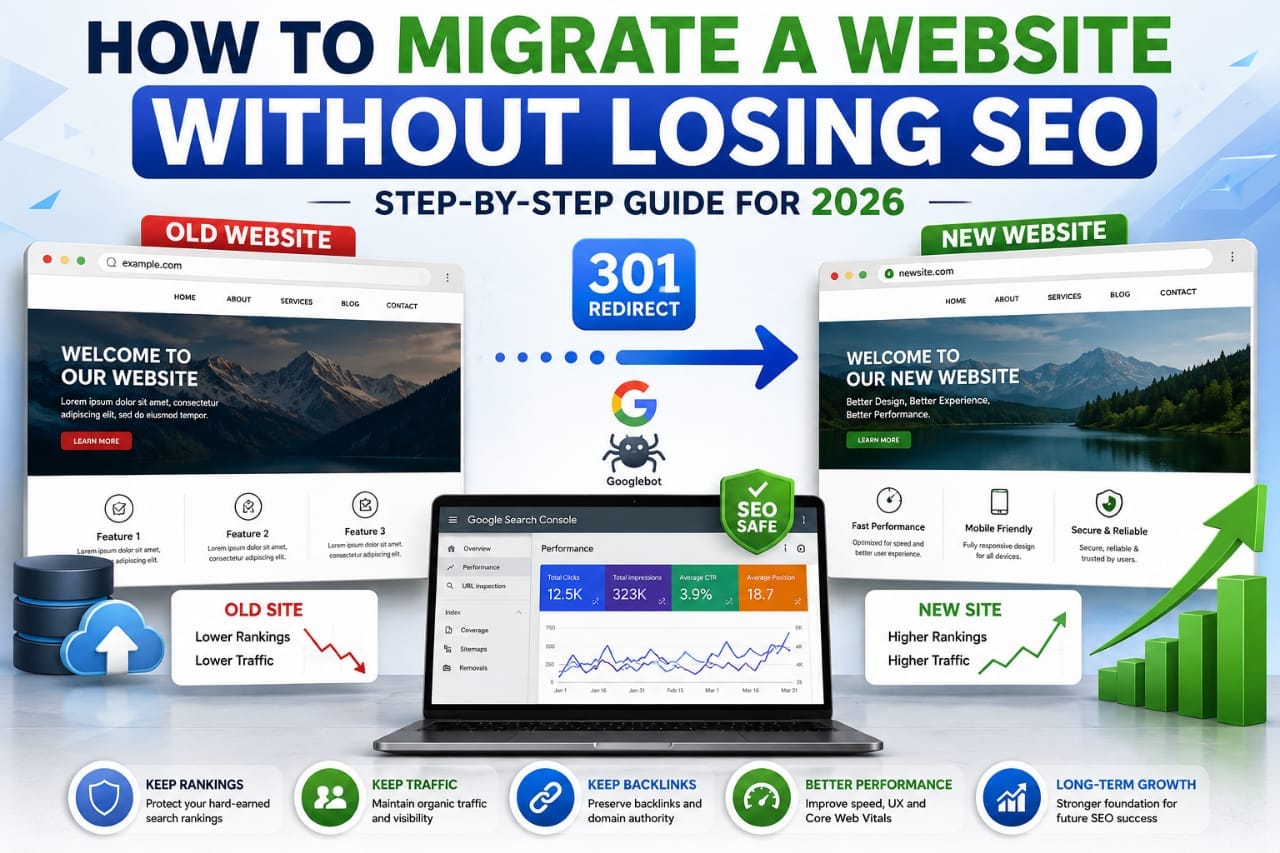
The good news is that website migration does not have to damage your rankings. Thousands of successful websites migrate every year while maintaining — and sometimes improving — their organic traffic by following a structured migration process.
Whether you're changing your hosting provider, moving to a new domain, redesigning your website, switching from HTTP to HTTPS, or migrating to WordPress, this guide explains how to protect your SEO before, during, and after the migration.
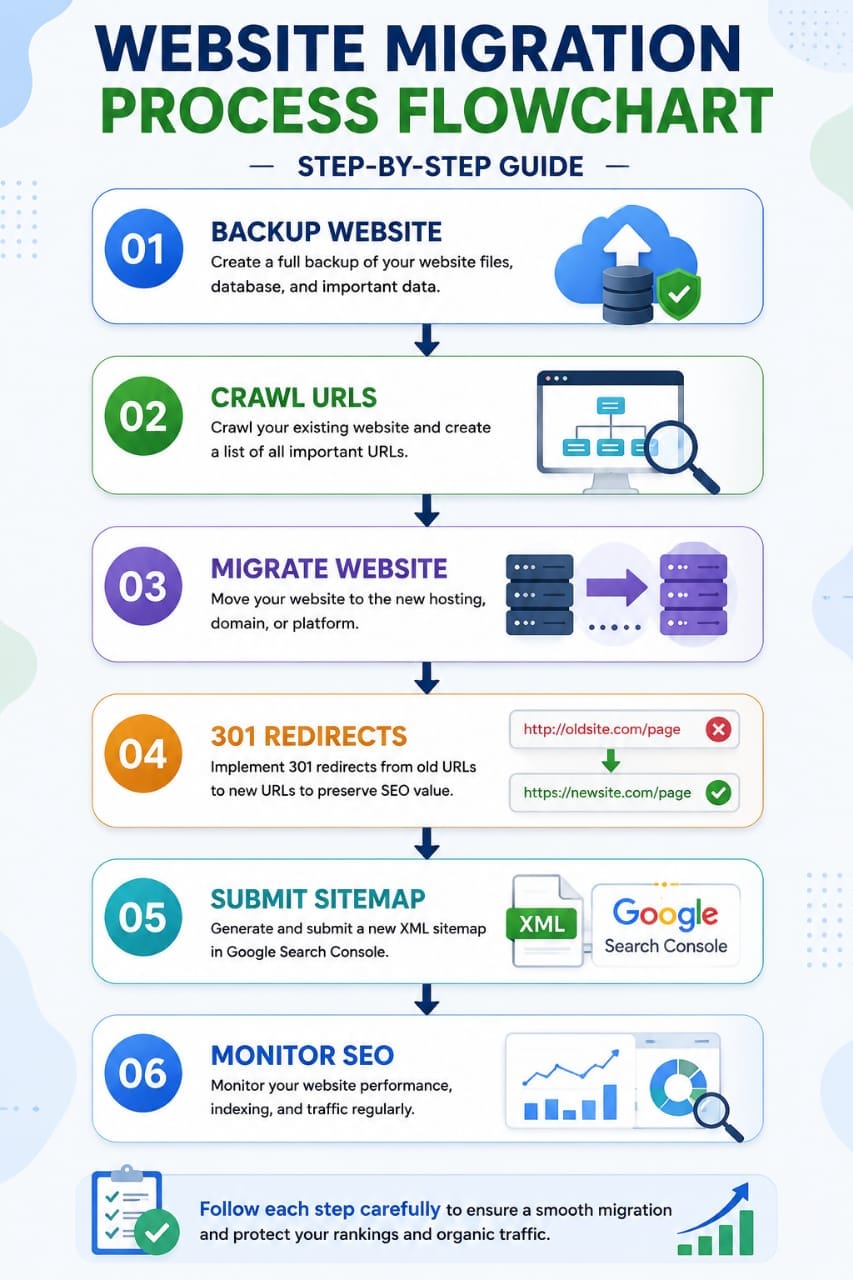
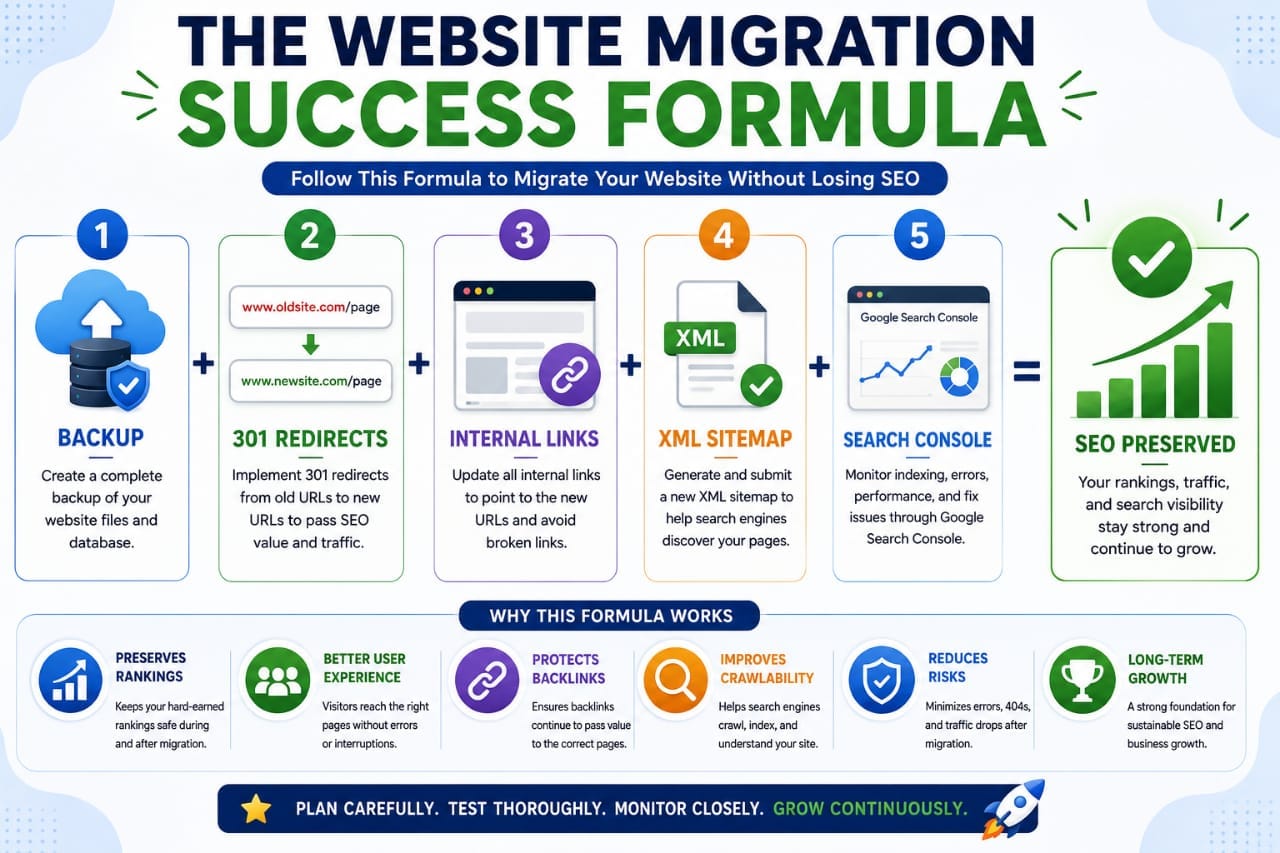
You can migrate a website without losing SEO by creating backups, crawling your existing site, preserving URL structure, implementing 301 redirects, updating internal links, submitting a new sitemap, and monitoring Google Search Console after launch.
What Is Website Migration?
Website migration refers to making significant technical changes that affect how search engines access or understand your website.
Common migrations include:
- Changing hosting providers
- Moving to a new domain
- Switching from HTTP to HTTPS
- Changing CMS (for example, Blogger to WordPress)
- Redesigning your website
- Changing permalink structures
- Merging multiple websites
Google provides guidance on site moves here:
Google Site Move Documentation
Why SEO Drops After Migration
Google doesn't automatically know that your old pages have moved.
If URLs disappear without redirects, search engines treat the old pages as missing.
This can result in:
- Lost rankings
- 404 errors
- Broken backlinks
- Reduced crawl efficiency
- Traffic decline
- Indexing issues
Most migration-related traffic losses occur because of technical mistakes rather than the migration itself.
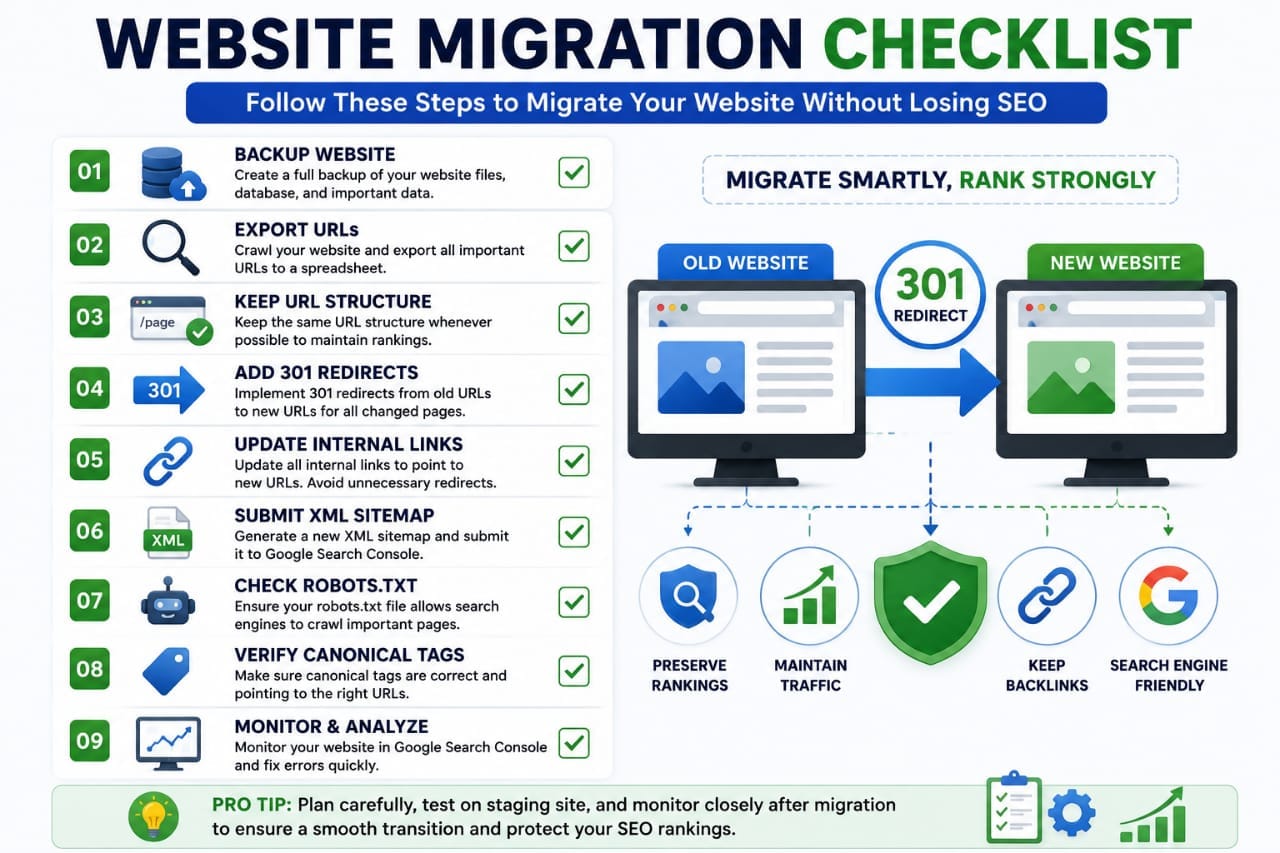
Step 1: Back Up Your Entire Website
Before changing anything, create a complete backup.
Your backup should include:
- Website files
- Database
- Images
- Themes
- Plugins
- Configuration files
If something goes wrong, a backup allows you to restore your website quickly.
Step 2: Crawl Your Existing Website
Create a complete inventory of your current website before migration.
This helps you identify every indexable URL.
Useful tools include:
- Screaming Frog SEO Spider
- Ahrefs Site Audit
- Semrush Site Audit
Official resources:
Step 3: Export Your URLs
Create a spreadsheet containing every important URL.
Include:
- Blog posts
- Pages
- Categories
- Tags (if indexed)
- Media files with backlinks
This list becomes your migration checklist.
Step 4: Keep the Same URL Structure Whenever Possible
The safest migration is one where URLs remain exactly the same.
Example:
Old:
example.com/seo-guide
New:
example.com/seo-guide
When URLs remain unchanged, Google generally processes the migration much more smoothly.
Step 5: Use 301 Redirects Correctly
If URLs must change, permanent 301 redirects are essential.
Example:
Old URL:
example.com/wordpress-seo-2024
New URL:
example.com/wordpress-seo-guide
The old URL should permanently redirect to the new URL.
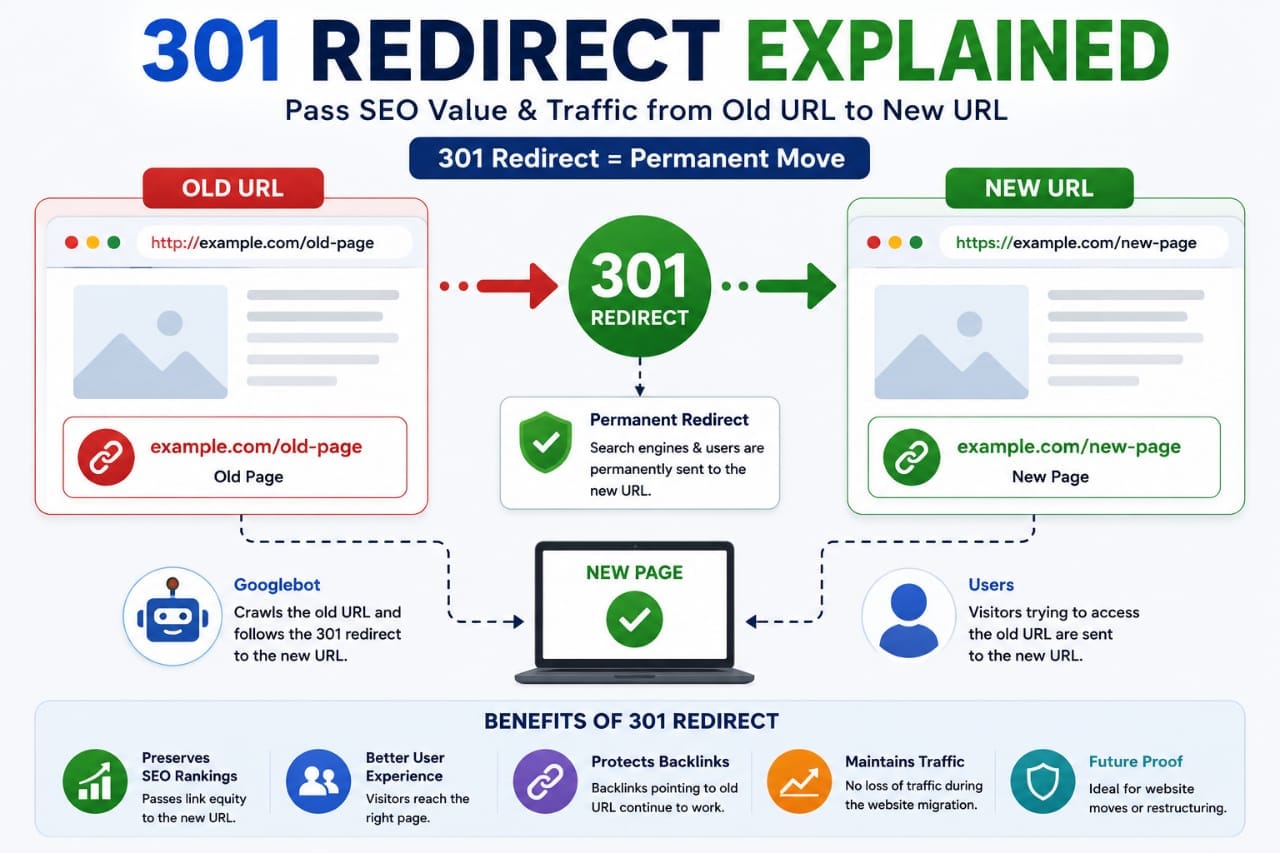
Google treats 301 redirects as the recommended method for transferring ranking signals during a site move.
Step 6: Don't Change Everything at Once
A common mistake is changing:
- Hosting
- Domain
- Theme
- CMS
- URL structure
…all during the same migration.
This makes troubleshooting extremely difficult.
Whenever possible, migrate one major component at a time.
If you're moving to a new hosting provider, keep the same domain and URL structure first. After everything is stable, consider redesigns or permalink changes separately.
Step 7: Preserve Your SEO Metadata
Your migration should retain:
- SEO titles
- Meta descriptions
- Canonical URLs
- Open Graph tags
- Schema markup
- Robots directives
Losing this information can reduce search visibility even if the pages themselves are intact.
Step 8: Test the New Website Before Launch
Before making the migrated website live, test everything on a staging environment.
Check:
- Internal links
- Navigation menus
- Forms
- Images
- Mobile responsiveness
- Page speed
- Redirects
Fixing issues before launch is much easier than repairing them after Google has started crawling the new version.
Step 9: Update Internal Links
Many website owners correctly implement 301 redirects but forget to update internal links.
Although redirects work, your website should link directly to the new URLs whenever possible.
This improves crawl efficiency and user experience.
Check:
- Navigation menus
- Blog posts
- Footer links
- Sidebar widgets
- CTA buttons
- Related posts
Broken or outdated internal links waste crawl budget and create unnecessary redirects.
Step 10: Generate and Submit a New XML Sitemap
After migration, generate a fresh XML sitemap containing only valid URLs.
Do not include:
- Redirected pages
- 404 pages
- Noindex pages
- Duplicate URLs
Submit the updated sitemap through:
This helps Google discover the new pages faster.
Step 11: Check Your Robots.txt File
One of the most common migration mistakes is accidentally blocking search engines.
Before launch, confirm that your robots.txt file allows Googlebot to crawl important sections of your website.
A staging website often contains rules such as:
User-agent: *
Disallow: /
If this remains after launch, Google may be unable to crawl your website.
Always verify your robots.txt file after migration.
Step 12: Verify Canonical Tags
Canonical tags tell search engines which version of a page is preferred.
During migration, ensure that canonical URLs point to the live pages—not the old domain or staging site.
Incorrect canonical tags can lead to duplicate content issues and indexing problems.
Step 13: Monitor 404 Errors
Even well-planned migrations may produce broken links.
Use Google Search Console to monitor:
- 404 errors
- Redirect issues
- Server errors
- Indexed pages
Fix broken URLs promptly with appropriate 301 redirects.
Do not redirect every missing page to your homepage. Redirect each old URL to the most relevant replacement page whenever possible.
Step 14: Monitor Google Search Console Daily
For the first few weeks after migration, review Search Console regularly.
Pay attention to:
- Indexing status
- Coverage reports
- Performance changes
- Crawl statistics
- Core Web Vitals
Small ranking fluctuations are normal after migration.
Long-term traffic loss usually indicates a technical issue that needs investigation.
Step 15: Check Core Web Vitals Again
Hosting changes, new themes, or different plugins can affect website performance.
After migration, test your website using:
Review:
- Largest Contentful Paint (LCP)
- Interaction to Next Paint (INP)
- Cumulative Layout Shift (CLS)
Improving these metrics supports both user experience and SEO.
Step 16: Re-submit Important Pages for Indexing
If you've migrated key pages, request indexing through Google Search Console.
This can speed up Google's discovery of updated URLs.
Focus on:
- Homepage
- High-traffic blog posts
- Category pages
- Important landing pages
Common Website Migration Mistakes
Many SEO problems occur because of avoidable mistakes.
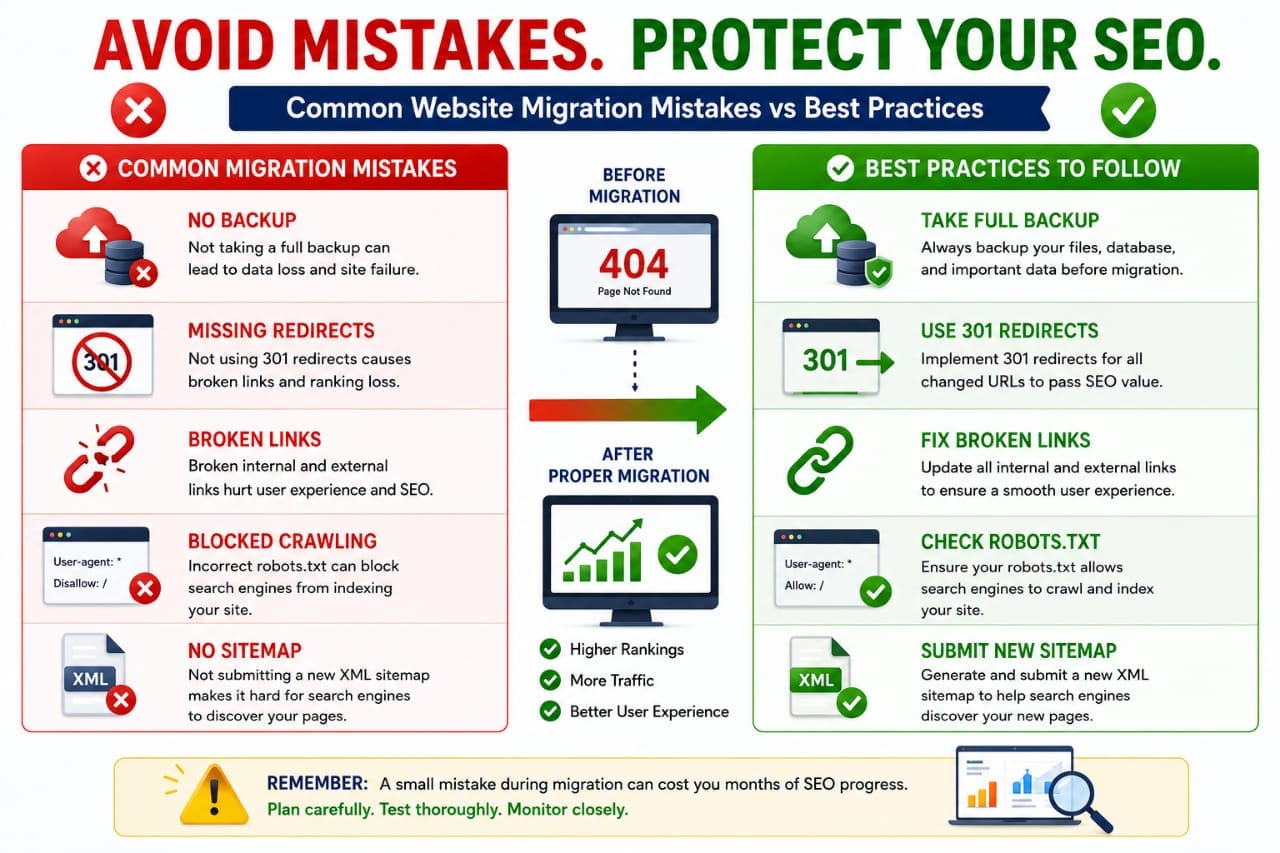
The most common include:
- Missing 301 redirects
- Changing URL structures unnecessarily
- Blocking Google with robots.txt
- Forgetting to submit a sitemap
- Broken internal links
- Incorrect canonical tags
- Deleting pages without replacements
- Ignoring Search Console errors
Planning each step carefully can prevent most migration issues.
Real Migration Example
Imagine a website with 300 indexed pages moving to a new hosting provider.
Before migration, the owner:
- Created a full backup
- Exported all URLs
- Kept the same permalink structure
- Tested the new site on staging
- Verified redirects and internal links
After launch, they:
- Submitted a new sitemap
- Requested indexing for key pages
- Monitored Search Console daily
- Fixed a few broken links
The result was a temporary fluctuation in rankings followed by a return to normal performance within a few weeks.
A short-term ranking fluctuation after migration is normal. What matters is ensuring Google can crawl, index, and understand your new website correctly.
Migration Checklist
- ✅ Create a complete backup
- ✅ Crawl and export all URLs
- ✅ Preserve URL structure
- ✅ Implement 301 redirects
- ✅ Update internal links
- ✅ Generate a new XML sitemap
- ✅ Verify robots.txt
- ✅ Check canonical tags
- ✅ Test Core Web Vitals
- ✅ Monitor Search Console daily
Advanced Website Migration Strategies
Not every migration is the same. Moving to a new hosting provider is much simpler than changing your domain or content management system.
Large websites should plan migrations carefully and perform them in stages whenever possible.
If your website receives significant organic traffic, create a migration checklist, test every change on a staging environment, and schedule the migration during periods of lower traffic.
How to Migrate to a New Domain Without Losing SEO
Changing your domain is one of the highest-risk migrations because every URL changes.
To preserve rankings:
- Implement 301 redirects from every old URL to the matching new URL.
- Verify the new domain in Google Search Console.
- Submit the new XML sitemap.
- Keep the old domain active for several months.
- Update internal links and canonical tags.
- Update backlinks where possible.
Removing the old domain immediately can result in lost traffic and broken backlinks.
Migrating from HTTP to HTTPS
HTTPS is now the standard for secure websites.
When migrating:
- Install a valid SSL certificate.
- Redirect every HTTP URL to HTTPS using 301 redirects.
- Update canonical URLs.
- Update your sitemap.
- Replace mixed-content resources.
Mixed-content warnings can prevent browsers from loading pages correctly and negatively affect user trust.
How Long Does SEO Recovery Take?
Recovery time depends on the size of your website and the type of migration.
| Migration Type | Typical Recovery Time |
|---|---|
| Hosting Change | A few days to 2 weeks |
| HTTPS Migration | 1–3 weeks |
| Domain Migration | Several weeks to a few months |
| CMS Migration | 2–8 weeks |
Minor ranking fluctuations during this period are common.
What If Your Traffic Drops After Migration?
A temporary decline doesn't always indicate a serious problem.
First, check:
- Redirects are working correctly.
- No important pages return 404 errors.
- Robots.txt isn't blocking crawlers.
- Canonical tags point to the correct URLs.
- The sitemap contains current URLs only.
- Google Search Console reports no critical indexing issues.
If traffic continues falling for several weeks, conduct a technical SEO audit.
Recommended Migration Tools
The following tools can simplify migration and post-launch monitoring:
- Screaming Frog SEO Spider
- Google Search Console
- Google Analytics
- Google PageSpeed Insights
- Ahrefs Site Audit
- Semrush Site Audit
- Rank Math SEO
Internal Resources
Continue Learning on Seovixo:
Final Verdict
Website migration doesn't have to result in lost rankings or traffic.
Most SEO problems occur because critical technical steps—such as implementing 301 redirects, preserving metadata, updating internal links, or submitting a new sitemap—are overlooked.
If you plan the migration carefully, test thoroughly before launch, and monitor Google Search Console afterward, your website can retain its search visibility and continue growing.
Think of migration as an SEO project rather than just a hosting or design task. The more preparation you do, the smoother the transition will be.
Frequently Asked Questions
Will I lose SEO when migrating my website?
Not necessarily. If you follow SEO best practices—especially using 301 redirects, preserving URLs where possible, and monitoring Search Console—you can minimize or avoid traffic loss.
Are 301 redirects required during migration?
Yes. If URLs change, permanent 301 redirects are the recommended way to transfer users and search engines to the new locations.
How long does Google take to recognize a migrated website?
Google may process smaller migrations within days, while larger domain or CMS migrations can take several weeks or longer.
Should I submit a new sitemap after migration?
Yes. Submitting an updated XML sitemap helps Google discover and crawl your migrated URLs more efficiently.
Is a temporary ranking drop normal?
Yes. Minor fluctuations are common while Google re-crawls and reprocesses your website after a migration.
Can I migrate my website without changing URLs?
Yes. If you're only changing hosting, keeping the same URL structure is one of the safest approaches for preserving SEO.
Key Takeaway
Successful website migration is built on preparation, testing, and monitoring.
Create backups, preserve your URL structure when possible, implement accurate 301 redirects, update internal links, submit a fresh sitemap, and monitor Google Search Console closely after launch.
Following these steps will give your website the best chance of maintaining its rankings, traffic, and long-term SEO performance.
```0