How to Make Elementor Pages Faster: A Complete Guide
Elementor makes it easy to build WordPress pages without coding, but a page can become slow when it contains oversized images, too many widgets, heavy animations, unnecessary scripts, or poorly configured caching.
The solution is not always to install another speed plugin or upgrade your hosting. First, identify what is slowing the page, then fix the biggest problems.
This guide explains practical ways to improve Elementor page speed while maintaining your design and functionality.
1. Test Your Elementor Page Before Making Changes
Start with "Google PageSpeed Insights" (https://pagespeed.web.dev/). Test your homepage, a typical blog post, and an Elementor landing page separately.
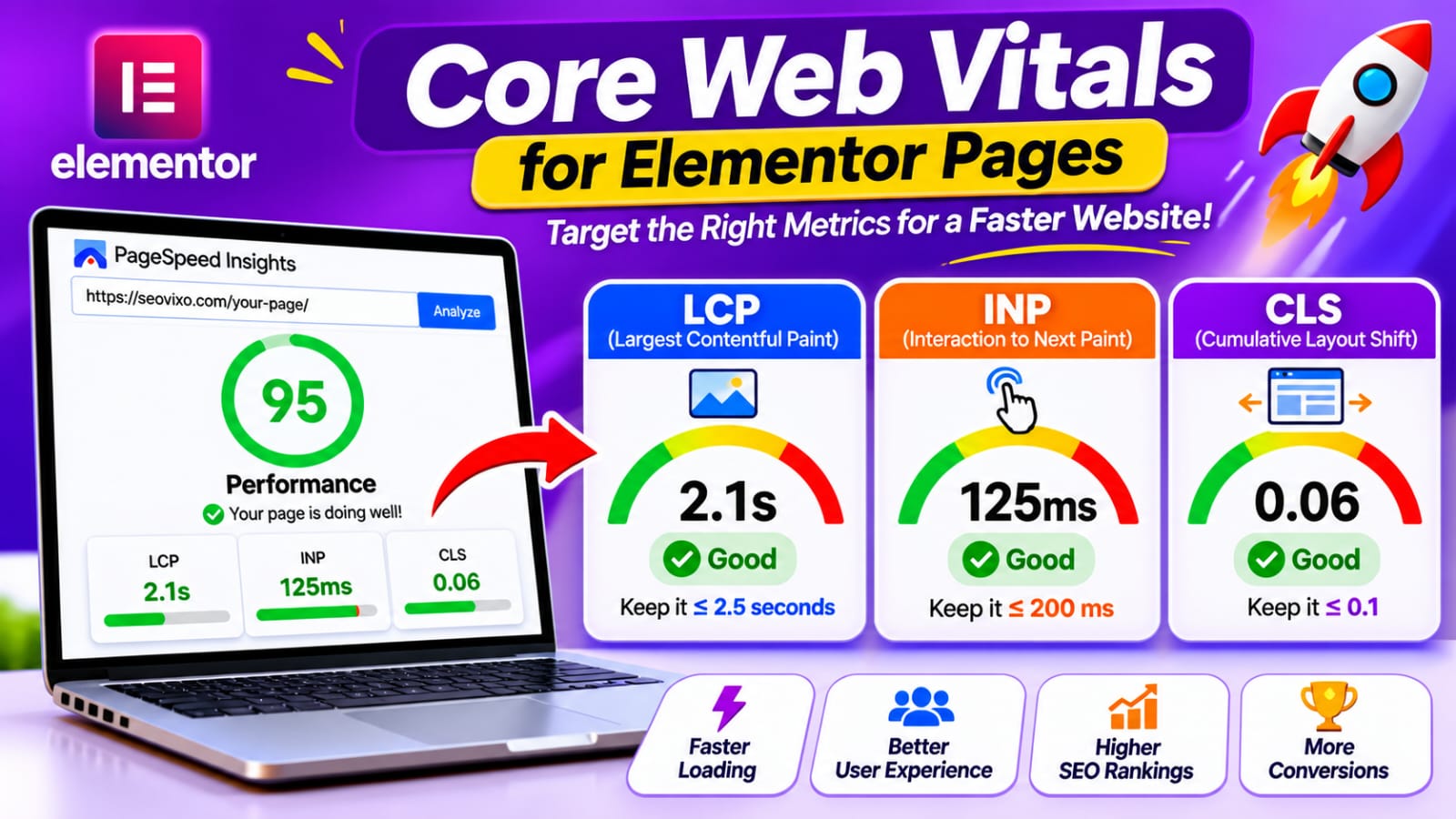
Pay attention to these Core Web Vitals:
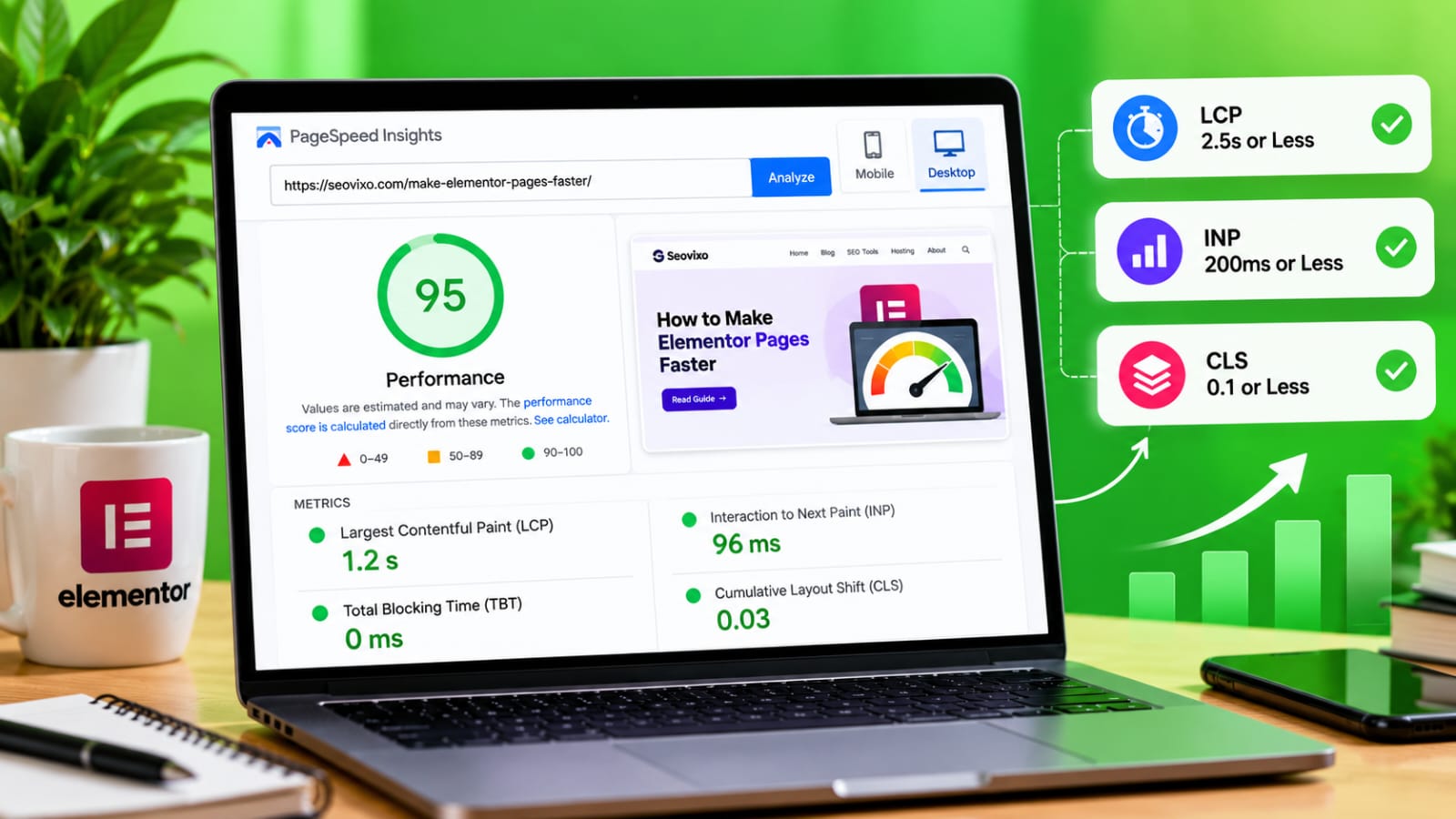
- LCP (Largest Contentful Paint): Should be 2.5 seconds or less.
- INP (Interaction to Next Paint): Should be 200 milliseconds or less.
- CLS (Cumulative Layout Shift): Should be 0.1 or less.
These targets are assessed at the 75th percentile of real user visits. PageSpeed Insights also provides lab diagnostics to help identify possible causes of slow performance.
Don't focus only on the overall performance score. Look at the specific recommendations and identify which resources are causing delays.
2. Optimize Images Used in Elementor
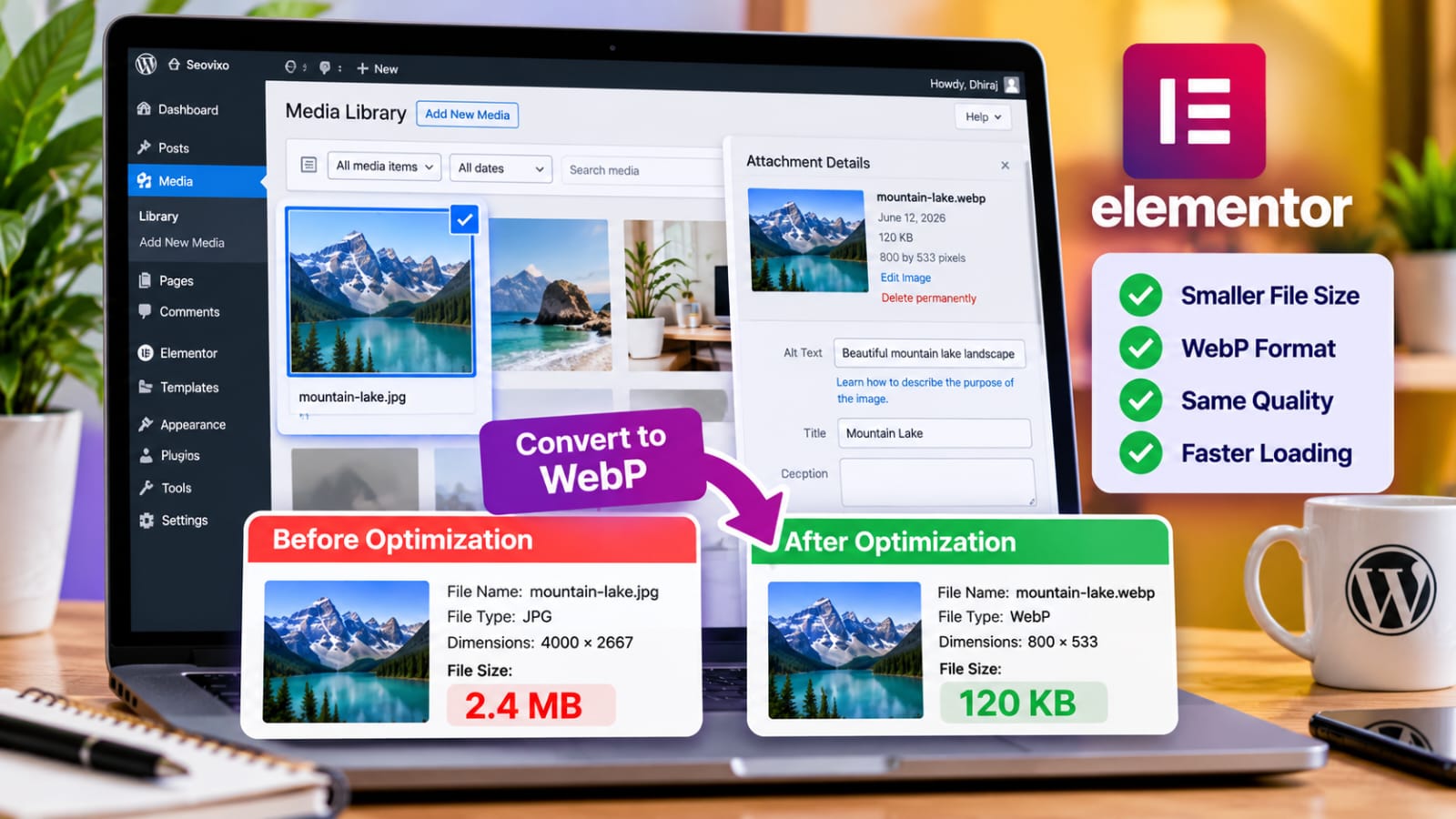
Large images are a common reason Elementor pages load slowly, especially when the hero section contains a large background image.Before uploading images, resize them to dimensions appropriate for their display area. Compress them and use modern formats such as WebP or AVIF when supported by your workflow.
For example, if a content image displays at approximately 800 pixels wide, uploading a 4,000-pixel image may waste bandwidth without providing a visible benefit.
Also:
- Compress featured images
.- Avoid unnecessarily large background images
.- Use descriptive alt text where appropriate
.- Lazy-load images that appear below the fold
.- Avoid lazy-loading the main image responsible for LCP.
Elementor provides an Optimized Image Loading feature that prioritizes important images and applies lazy loading where appropriate. Check Elementor → Settings → Performance for the available options in your installed version.
3. Reduce Unnecessary Elementor Widgets
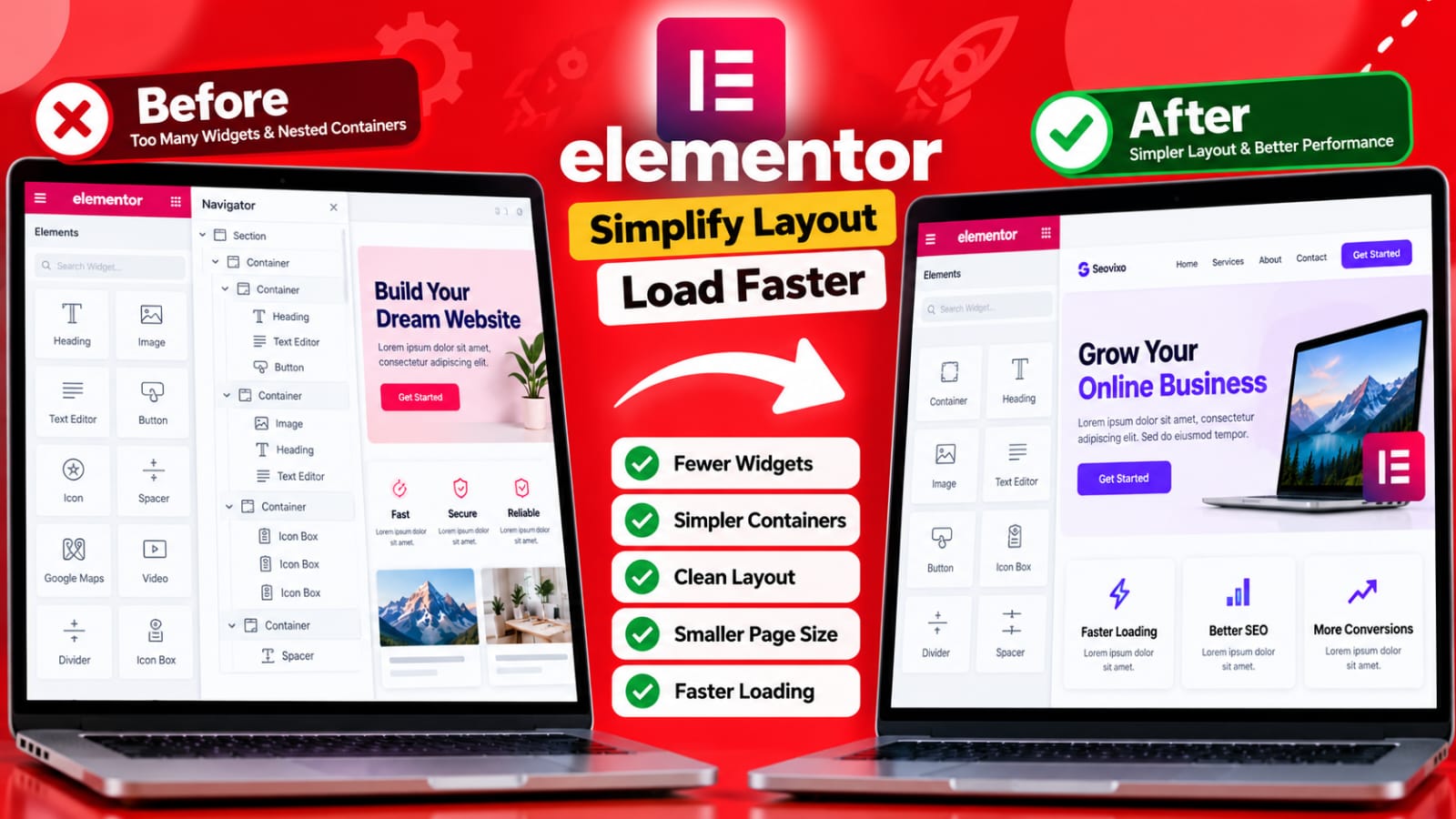
Every widget can add markup, styling, scripts, or other processing requirements. The impact varies by widget, but complex designs can become expensive when many elements are combined.Review your page and remove anything that does not improve the visitor's experience.
Examples include:
- Multiple animated headings
- Unnecessary image carousels
- Repeated decorative sections
- Excessive nested containers
- Duplicate buttons
- Widgets that display the same information
If a simple text block can replace a complicated animated element, consider simplifying it.Elementor has also introduced performance features that reduce unnecessary code and optimize element output. Availability depends on the version and configuration of your website.
The goal is not to use the fewest widgets possible. It is to avoid loading complexity that provides little value.
4. Simplify Containers and Page Layouts
A deeply nested layout can produce a large Document Object Model (DOM). A complicated DOM may increase browser processing and contribute to slower rendering.For example, avoid building a simple two-column section with many unnecessary containers, inner sections, spacers, and decorative elements.
Instead:
- Use containers where appropriate
- Remove empty sections
- Reduce unnecessary nesting
- Avoid duplicating entire layouts for minor visual differences
- Check mobile layouts for redundant elements.
Elementor's optimized DOM improvements reduce unnecessary wrapper elements, although custom CSS that depends on older markup may need adjustments.
After simplifying a layout, check desktop and mobile views to ensure that spacing, alignment, and responsive behavior remain correct.
5. Configure Caching Carefully
Caching can reduce repeated processing and help pages load faster.Depending on your hosting environment, you may use a compatible WordPress caching plugin, server-level caching, or a CDN.If your server uses LiteSpeed, LiteSpeed Cache may provide relevant caching and optimization features. On other environments, choose caching tools compatible with the server and existing configuration.
Check that:
- Page caching is working.
- Browser caching is configured appropriately.
- Static assets can be cached
- Logged-in editing sessions are not served inappropriate cached pages
- Cache exclusions are correct for dynamic functionality.
After changing Elementor layouts or performance settings, clear the relevant caches and retest the page.Avoid enabling every minification, delay, and combine option at once. Some settings can break menus, forms, sliders, or other interactive elements.
6. Reduce Unnecessary CSS and JavaScript
Third-party scripts, large CSS files, and JavaScript that blocks rendering can delay the visible page and make interactions less responsive.
Review scripts from:
- Elementor add-ons
- Analytics tools
- Chat widgets
- Social sharing tools
- Advertising
- External fonts
- Animation libraries
Remove unused plugins and widgets before attempting advanced code optimization.If your caching plugin supports delaying JavaScript, test the change carefully. Delaying every script can break important functions or cause content to appear late.
Elementor's improved asset loading can load certain widget functionality only when needed, reducing unnecessary front-end resources.
7. Optimize Fonts and Icons
Multiple font families and weights can increase the number and size of font files a browser needs to download.Use a limited typography system across your website. For example, one body font and one heading font may be sufficient.
Then:
- Remove unused font weights.
- Avoid loading several external font families
- Use local fonts where appropriate
- Remove unused icon libraries
- Prefer lightweight SVG icons when suitable
Check your website after changing fonts because typography affects layout, spacing, and CLS.
8. Improve Hosting and Server Response
Sometimes an Elementor page is slow because the server takes too long to respond.Check Time to First Byte (TTFB), server resource usage, database performance, and caching behavior.Hosting may be part of the problem, but so can inefficient plugins, database queries, and WordPress configuration.If every page is slow, investigate site-wide issues.
If only one Elementor page is slow, inspect its images, widgets, embeds, and scripts first.A CDN may help deliver static resources more efficiently to visitors who are geographically distant from your server.
Do not upgrade hosting solely because a speed test gives a low score. Collect evidence about the bottleneck first.
9. Prevent Layout Shifts on Mobile
A page that looks fast but constantly moves while loading can still provide a poor experience.
To reduce CLS:
- Set image dimensions or aspect ratios.
- Reserve space for advertisements and embeds.
- Avoid inserting banners above existing content unexpectedly.
- Check font loading behavior.
- Review sticky headers and popups.
- Test responsive layouts on mobile.
Pay special attention to hero sections and buttons. If an element shifts while a visitor is trying to tap it, the page becomes frustrating to use.
10. Retest After Every Major Change
Make changes in small groups rather than changing every setting simultaneously.
A useful workflow is:
1. Record your original PageSpeed results.
2. Optimize images.
3. Retest.
4. Simplify widgets and layouts.
5. Retest.
6. Adjust caching and scripts.
7. Retest.
8. Check mobile and desktop behavior.
9. Confirm that forms, menus, and buttons still work.
10. Review real-user Core Web Vitals in Search Console when sufficient data is available.This approach helps you understand which changes actually improved performance.
My Practical Experience
While working with WordPress pages, I found that installing more optimization plugins is not always the best starting point. Image sizes, caching, Elementor layouts, scripts, and server response can all affect the result.A more useful approach is to test the actual page, identify the largest bottleneck, make one controlled change, and measure again.
For Elementor websites, I would prioritize large images, unnecessary widgets, caching configuration, excessive scripts, and mobile layout problems before spending time on minor score improvements.These are practical troubleshooting priorities, not a claim that every Elementor website has the same bottleneck.Elementor Speed Optimization Methods Compared

Dhiraj Jaiswal
Dhiraj Jaiswal is the founder of Seovixo. He writes about SEO, WordPress, website speed, web hosting, and blogging to help readers improve their websites with practical, easy-to-follow guides.
More About the Author →