Crawled – Currently Not Indexed: How to Fix It in Google Search Console
Have you published a new blog post, submitted your sitemap, and checked Google Search Console, only to find the status “Crawled – currently not indexed”?
This is a common indexing issue for website owners. Google has already visited the URL, but the page has not been added to Google's search index. As a result, it generally will not appear in normal Google Search results.
The status does not necessarily mean your website has a technical error. Google may have crawled the page but decided not to index it at that time. The reason could involve content quality, duplication, canonical selection, internal linking, or other signals.
In this guide, you will learn what this status means, how to investigate the affected URL, and how to fix the underlying problems using Google Search Console and WordPress.
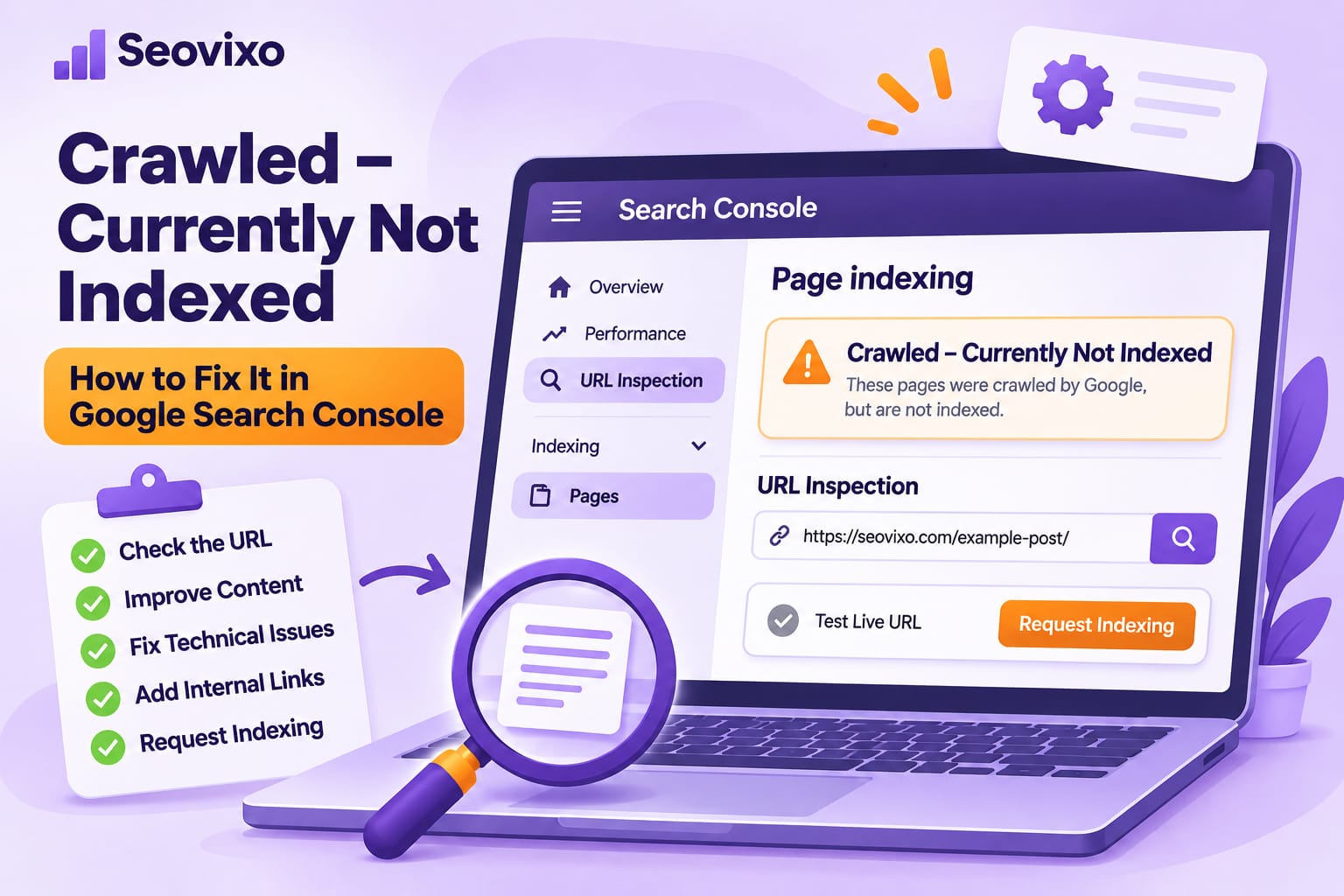
1. What Does Crawled – Currently Not Indexed Mean?
When Google discovers a URL, it may crawl the page to understand its content and other signals. However, crawling does not guarantee indexing.
The status Crawled – currently not indexed means Google has crawled the URL but has not included it in its index at the time represented by the report.
This is different from Discovered – currently not indexed:
- Crawled – currently not indexed: Google visited the page but has not indexed it.
- Discovered – currently not indexed: Google knows the URL, but has not crawled it yet.
Neither status automatically means that your website has been penalized. You need to investigate the affected URLs and decide whether they are important pages that should be indexed.
2. How to Find Crawled – Currently Not Indexed Pages in Google Search Console
Follow these steps to identify the affected pages.
1. Open Google Search Console and select your website property.
2. Navigate to Indexing → Pages.
3. Find the Why pages aren't indexed section.
4. Look for Crawled – currently not indexed.
5. Click the status to see the affected URL examples.
6. Select a URL you want to investigate.
You can also inspect an individual URL by pasting it into the URL Inspection search bar at the top of Search Console.Record the affected URLs before making changes.
If the report contains many pages, group them by page type, such as blog posts, category pages, tags, or other archives. This makes it easier to identify whether several URLs share the same problem.
3. Why Google Crawls a Page but Does Not Index It
There is no single explanation for every URL with this status. Several conditions may contribute to Google's decision.Thin or Unhelpful Content
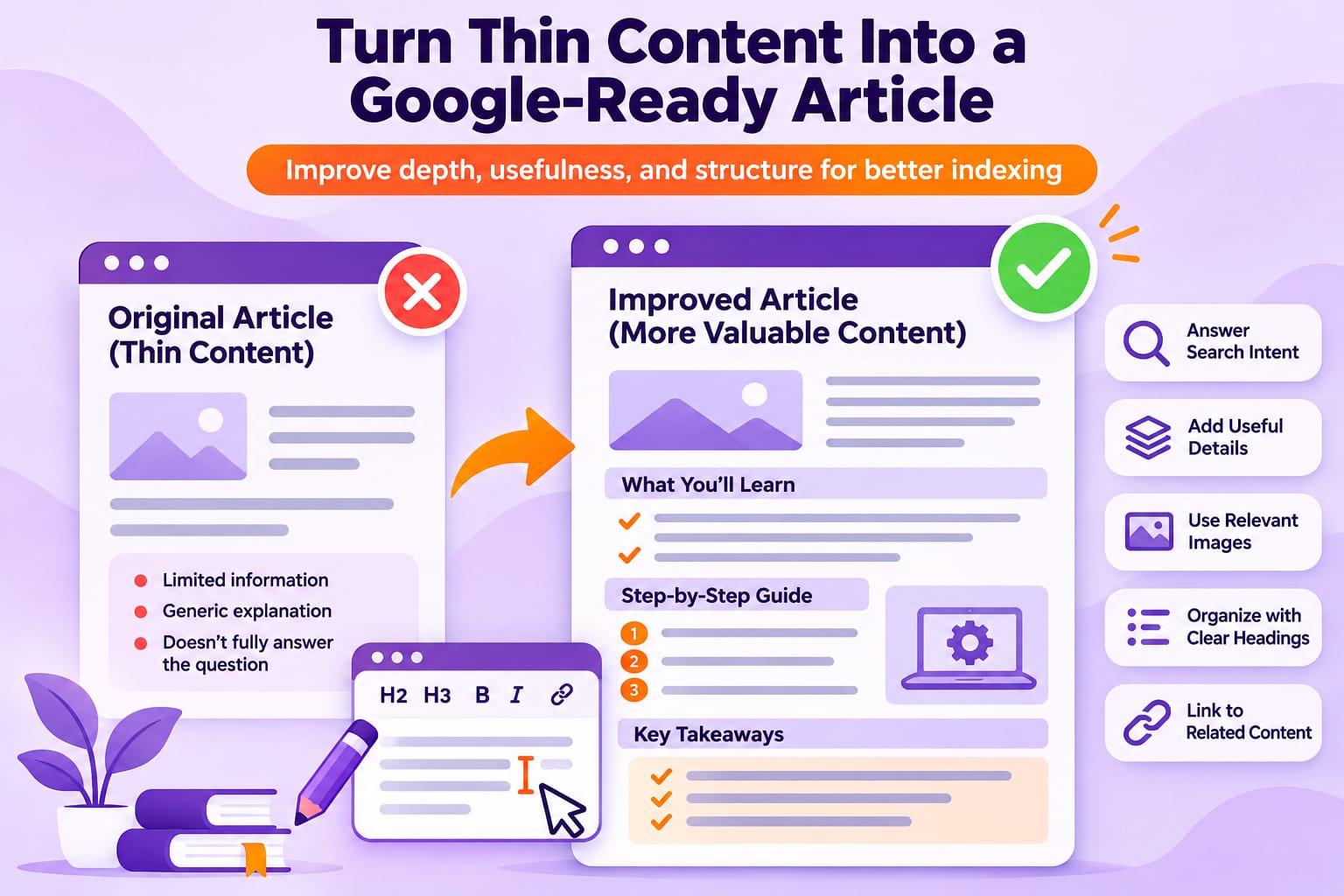
A page may provide limited information, repeat obvious advice, or fail to answer the reader's question properly.
For example, an article titled "Best SEO Tools" that only lists tool names and short descriptions may offer little additional value compared with existing search results.
Improve it with meaningful comparisons, practical instructions, relevant examples, original observations, and information that helps readers make a decision.
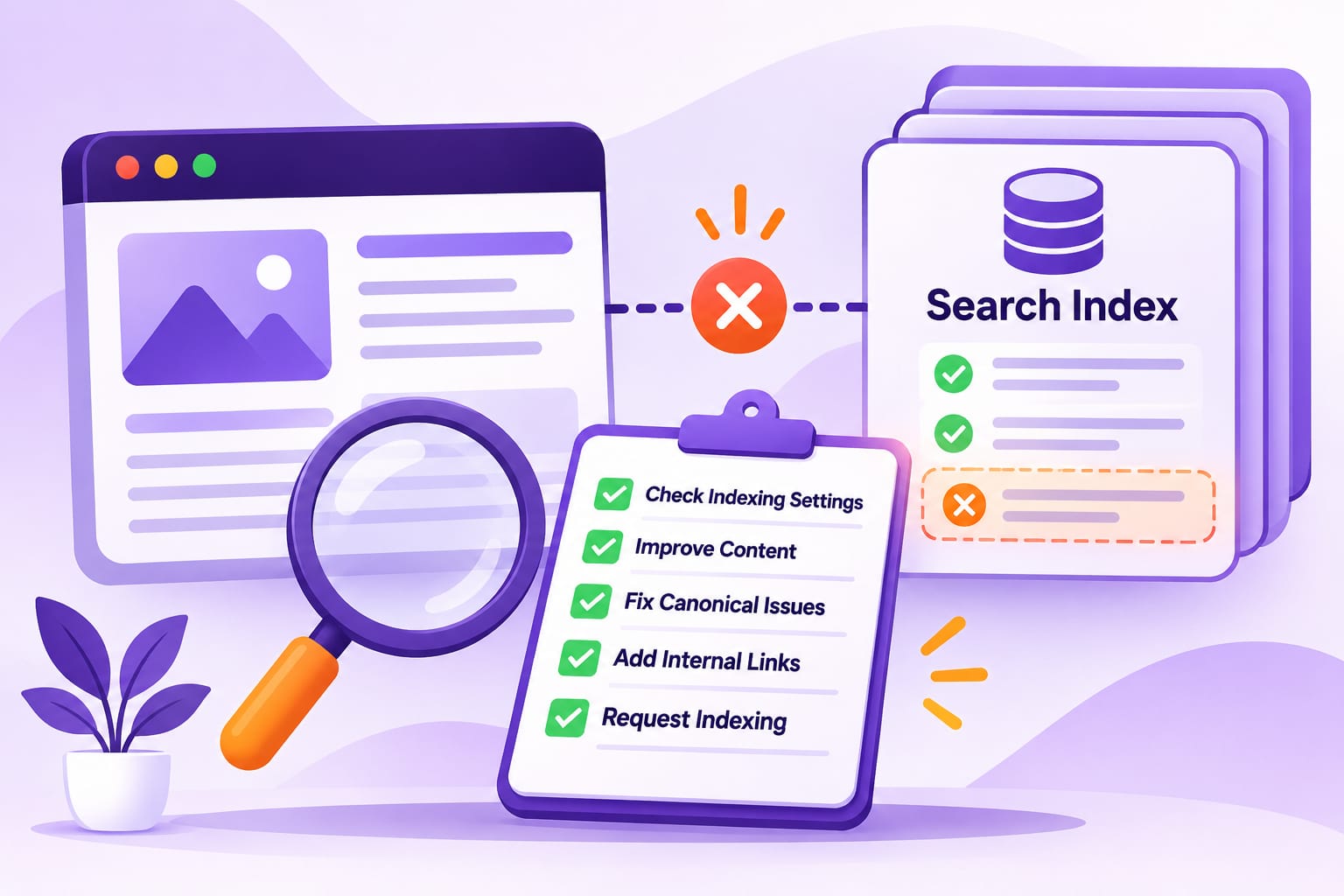
Duplicate or Very Similar Articles
If your website has several pages covering almost the same topic, Google may decide that one URL is more appropriate to index.
For example, two articles explaining nearly identical WordPress speed optimization methods may overlap substantially.
Review similar pages. Combine them when they serve the same search intent, or make each page meaningfully distinct when they address different questions.
Weak Internal Linking
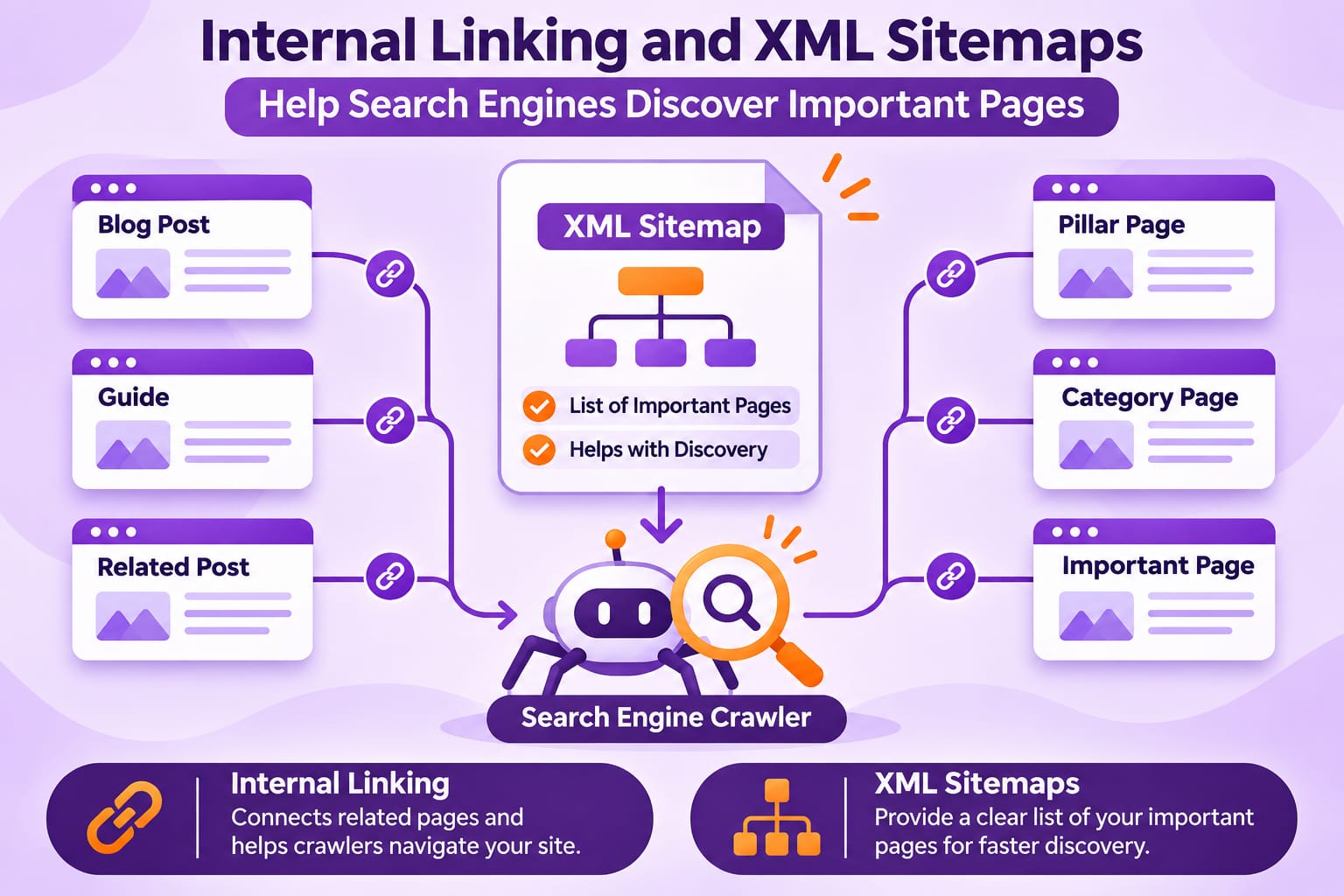
A page that has very few relevant internal links may be harder for visitors and search engines to discover within your website.
Add contextual links from related, established articles. Use descriptive anchor text and link to the page where it genuinely helps the reader.
Incorrect Canonical URL
A canonical tag tells search engines which URL you prefer to represent a page or group of duplicate pages.
If an article accidentally points its canonical tag to another URL, Google may treat that other page as the preferred version.
Check whether the declared canonical URL matches the page you intend to index. Also inspect Google's selected canonical URL in Search Console.
Poor Page Experience or Rendering Problems
A page that loads incompletely, displays an error, or hides important content behind scripts may not be presented as intended.
Check the page on mobile and desktop.
Make sure the main article content is visible, readable, and accessible without requiring a user to log in or complete an action.
Low-Value or Unnecessary URLs
Not every URL on your website needs to appear in Google Search.
Some tag pages, filtered URLs, duplicate archives, internal search pages, and thin category pages may provide little independent value.
Do not try to index every URL. Prioritize useful pages that serve a clear purpose for visitors.
4. How to Fix Crawled – Currently Not Indexed in Google Search Console
5. Step-by-Step Fixes for WordPress Websites
If you use WordPress, check these areas carefully.Check the Noindex SettingOpen the affected post in the WordPress editor and find your SEO plugin's advanced settings.
In Rank Math, check the Robots Meta settings for the page. Make sure it is not accidentally set to No Index if you want the page included in search results.
Also check whether a sitewide setting or another plugin is adding an unexpected robots directive.
Check the Canonical URL
In Rank Math, inspect the canonical URL field under the advanced SEO settings.For a normal, original article, the canonical should generally point to its preferred public URL.
Check that it does not point to an unrelated article, category page, or another version of the URL.Do not add a self-referencing canonical simply as a magic indexing fix.
The important thing is to make sure your canonical signals are correct and consistent.
Improve the Article
Read the page as a visitor rather than looking only at its SEO score.
Ask yourself:
- Does the article answer the main search question?
- Is the information accurate and current?
- Does it provide practical value beyond generic explanations?
- Does it overlap heavily with another article on your website?
- Are important sections missing?
- Can the visitor understand the topic without reading several unrelated pages?
Make meaningful improvements rather than adding paragraphs just to increase word count.
Add Relevant Internal Links
Find two or three related articles that naturally connect to the affected page.Add links within useful paragraphs instead of placing unrelated links randomly at the bottom of the article.
You can also add the affected page to a relevant category or topic hub, provided the category itself helps visitors navigate your website.
Check Your Sitemap
Make sure your important, canonical article URL appears in your XML sitemap.If you use Rank Math, visit your sitemap index and open the relevant post sitemap.
onfirm that the URL is Cpresent and that it is the preferred version.A sitemap helps Google discover URLs, but submitting a URL does not guarantee indexing.
You can read our guide to "XML Sitemap Issues in WordPress" (https://seovixo.com/xml-sitemap-issues-wordpress/) for more troubleshooting steps.
6. How to Use URL Inspection and Request Indexing
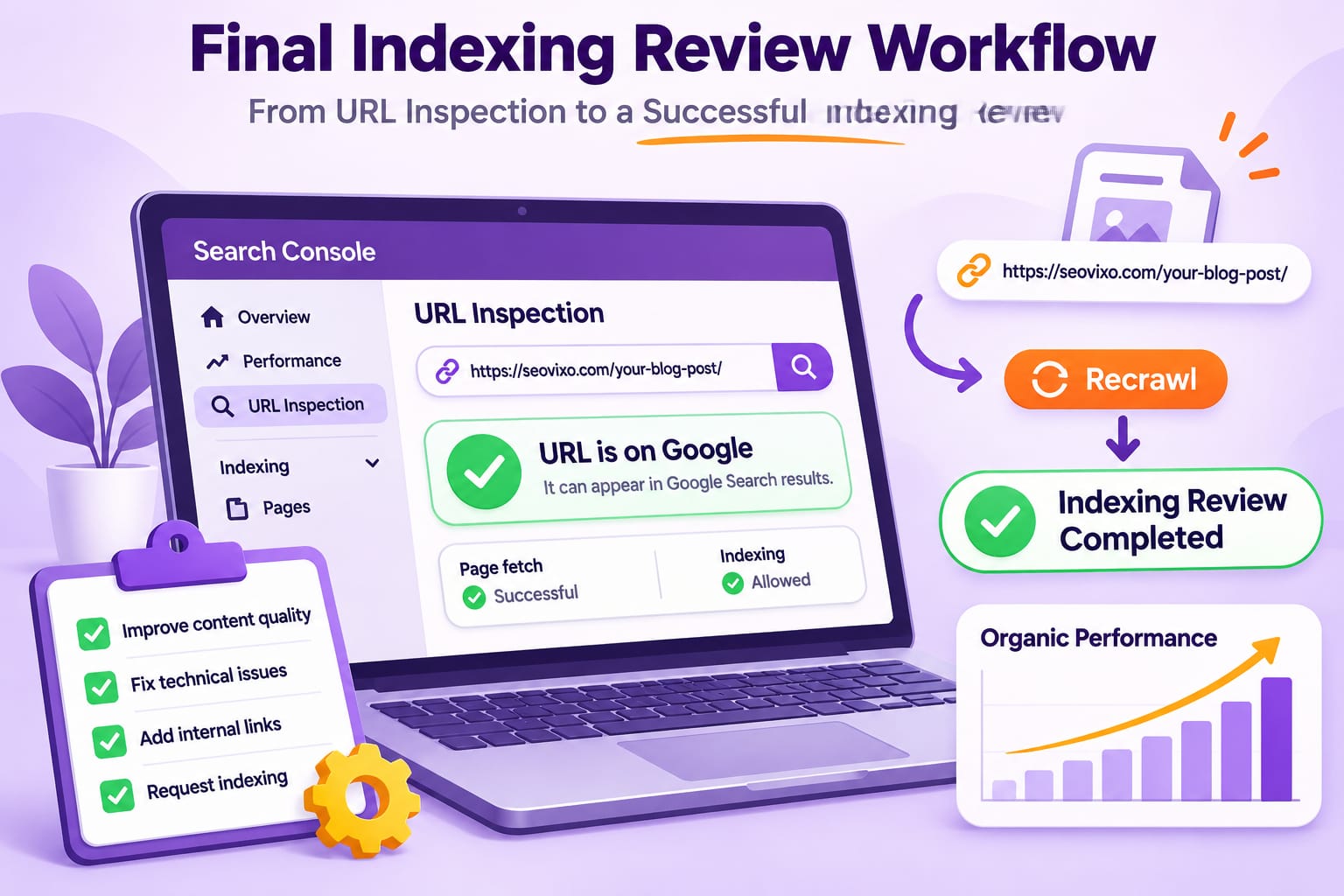
After making meaningful corrections, use the URL Inspection tool.First, paste the affected URL into the inspection bar. Review the Google index information, including the last crawl date and Google's selected canonical URL when available.
Next, select Test Live URL to check the current page.Review these details:
- Page fetch: Did Google successfully access the page?
- Crawl allowed: Is Googlebot allowed to crawl it?
- Indexing allowed: Is the page blocked by a noindex directive?
- User-declared canonical: Which URL does your website identify as canonical?
Remember that the live test cannot check every indexing condition. In particular, it cannot directly determine whether Google will index a page currently classified as crawled but not indexed.
If the technical checks look correct and you have improved the page, use Request Indexing to ask Google to reconsider it.Requesting indexing is not a guarantee.
Google may take time to recrawl the page, and repeatedly submitting the same URL does not make the process faster. Use this feature for important URLs rather than every page on your website.
7. What to Do If the Page Is Still Not Indexed
If the page remains in the report after you have corrected the relevant issues, avoid making random changes every day.
Check the following:
- Has Google crawled the page again since you made the changes?
- Is Google selecting a different canonical URL?
- Does the page still overlap with another article?
- Is the article genuinely useful and sufficiently distinct?
- Can visitors reach the page through relevant internal links?
- Is the URL returning a normal, accessible page?
Allow Google time to process the changes and monitor the URL Inspection and Page indexing reports.If the page offers little unique value and duplicates another page, consider consolidating the content.
If the URL is no longer useful, decide whether it should remain available, redirect to a relevant replacement, or return an appropriate not-found response.
Do not delete useful articles simply because they are not indexed yet.
Final Thoughts
The Crawled – currently not indexed status can be frustrating, especially when you have invested time in writing and optimizing an article.However, the correct solution is not to submit the URL repeatedly or publish more articles without investigating the problem.
Check the page's content quality, duplication, canonical URL, internal links, and technical accessibility. Make meaningful improvements, request indexing when appropriate, and monitor the result in Google Search Console.
Focus on getting your most useful, original, and important pages indexed rather than trying to make every URL on your website appear in Google Search.