Why Your WordPress Website Is Slow Even With Caching (2026 Guide)
You installed a caching plugin, enabled page caching, cleared your cache, and expected your WordPress website to become lightning fast. But after testing it with Google PageSpeed Insights or GTmetrix, the results are still disappointing.
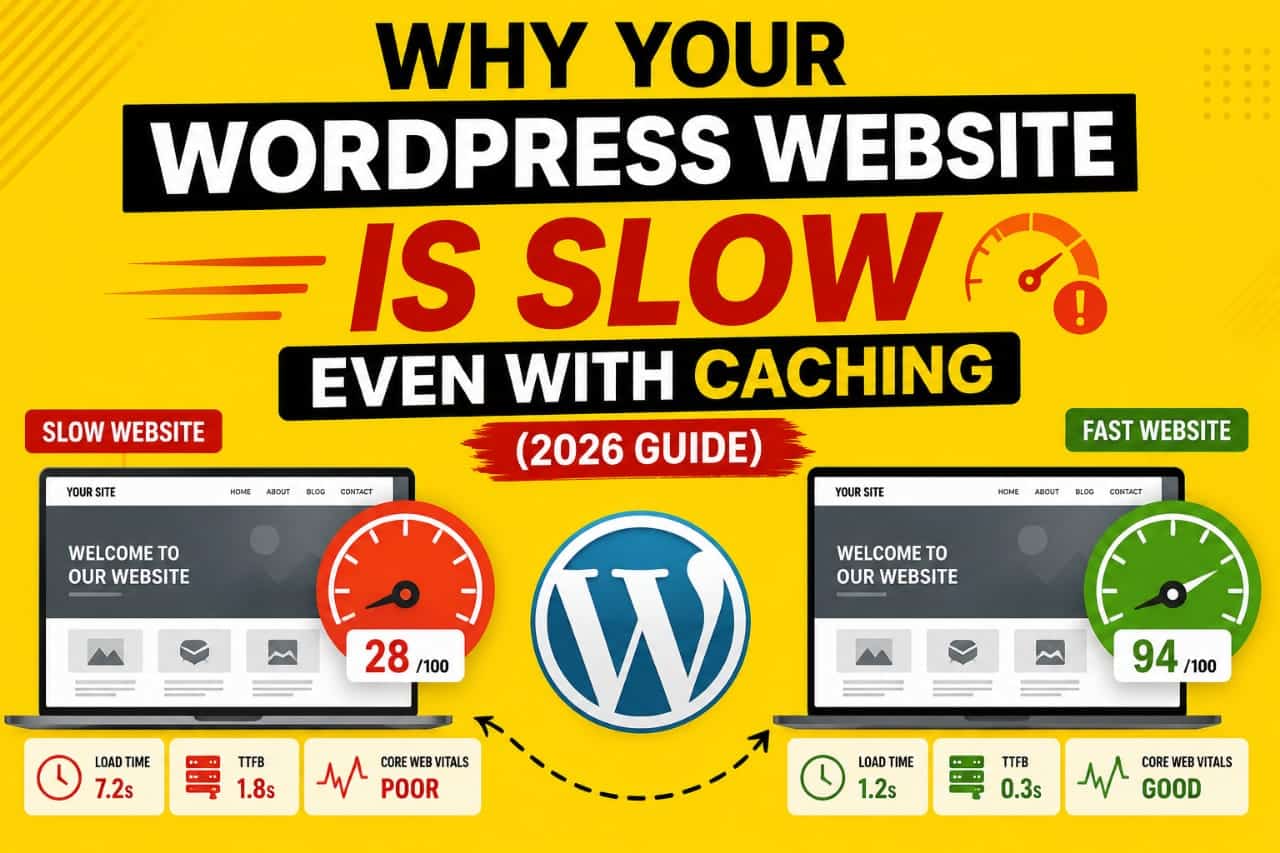
This is a common situation for many WordPress users. Caching is one of the most effective performance optimizations, but it's not a complete solution. If your website is still slow after enabling caching, the problem usually lies elsewhere.
A slow website can be caused by poor hosting, oversized images, inefficient plugins, excessive JavaScript, a slow database, high server response times, or third-party scripts. A caching plugin simply can't fix these underlying issues on its own.
While working on WordPress websites, I've learned that caching should be viewed as one piece of a complete performance strategy—not as a one-click fix. In many cases, websites remain slow because the real bottleneck is outside the cache itself.
In this guide, you'll learn why your WordPress website may still load slowly even with caching enabled, how to identify the actual cause, and the practical steps you can take to significantly improve loading speed in 2026.
If your WordPress website is slow even with caching enabled, the issue is likely related to slow hosting, high TTFB, unoptimized images, excessive plugins, render-blocking CSS or JavaScript, database inefficiencies, or third-party resources. Caching improves performance, but it cannot solve every speed problem.
What Does a Caching Plugin Actually Do?
Before troubleshooting performance problems, it's important to understand what caching is designed to do.
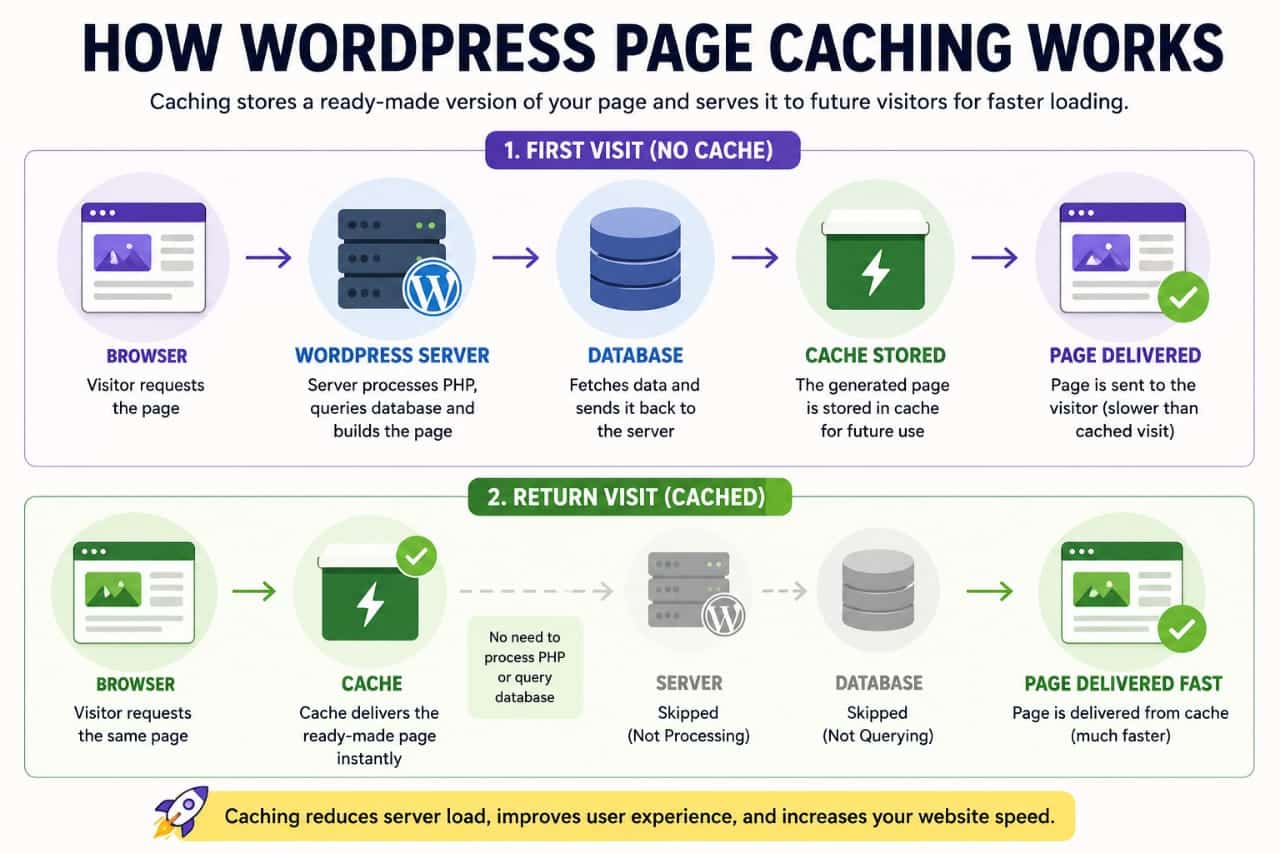
Normally, every time someone visits your website, WordPress performs several tasks before displaying the page:
- Processes PHP code.
- Loads your theme.
- Runs active plugins.
- Queries the database.
- Generates the webpage.
A caching plugin stores a ready-made version of that page so future visitors can receive it much faster without repeating the entire process.
This reduces server workload and improves loading speed for many websites.
Why Caching Doesn't Fix Every Speed Problem
Many website owners assume that installing a caching plugin will automatically solve all performance issues.
Unfortunately, that's not how website optimization works.
Even when pages are cached, visitors still need to download images, CSS files, JavaScript, fonts, videos, and other resources.
If these files are large or poorly optimized, your website can remain slow despite having an excellent caching setup.
Think of caching as improving how quickly your server prepares a page—not how efficiently every part of that page loads.
Signs That Caching Isn't the Real Problem
If you've enabled caching but still notice poor performance, watch for these common signs:
- High Time to First Byte (TTFB).
- Large image files.
- Slow Core Web Vitals.
- Long JavaScript execution time.
- Heavy third-party scripts.
- Slow mobile performance.
- High CPU usage on your hosting account.
These usually indicate that the bottleneck exists elsewhere.
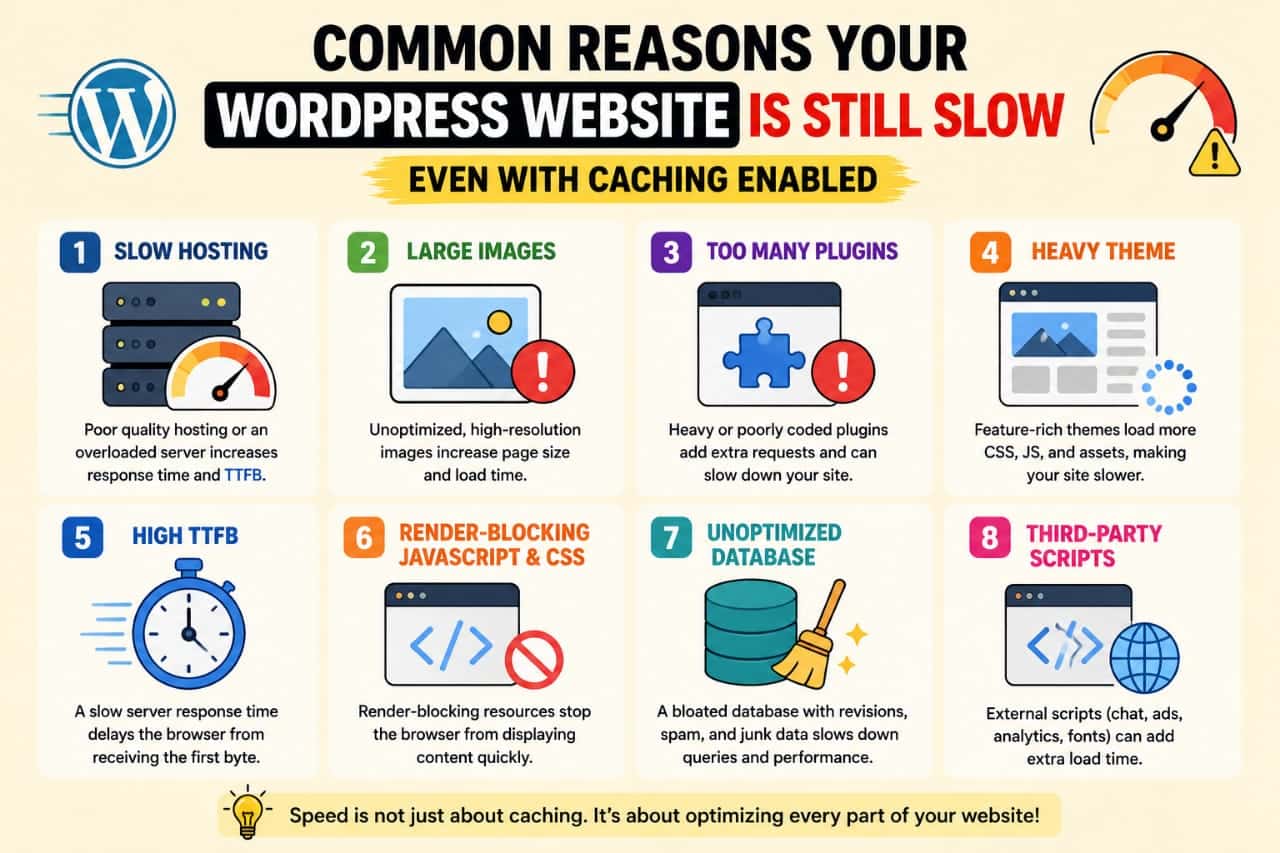
1. Your Hosting Is Too Slow
One of the biggest reasons websites remain slow is poor-quality hosting.
Even the best caching plugin cannot compensate for an overloaded server.
Cheap shared hosting often places hundreds of websites on the same server. During busy periods, response times can increase noticeably.
Common hosting-related issues include:
- Overloaded shared servers.
- Limited CPU resources.
- Slow SSD performance.
- Insufficient memory.
- Outdated server software.
If your server responds slowly before the page even begins loading, caching alone won't solve the issue.
2. Your Images Are Too Large
Images are one of the most common reasons WordPress websites load slowly.
Even if the HTML page is delivered instantly from the cache, visitors still need to download every image on the page.
Large PNG files, uncompressed JPEGs, and oversized featured images can dramatically increase loading times.
For better performance:
- Compress images before uploading.
- Use modern formats such as WebP or AVIF when supported.
- Resize images to match their display dimensions.
- Enable lazy loading where appropriate.
3. You Have Too Many Plugins
Plugins extend WordPress functionality, but each active plugin adds additional code that may affect performance.
Not every plugin is slow, but poorly coded or unnecessary plugins can increase processing time, database queries, and script loading.
Instead of counting plugins, evaluate their quality and whether they're truly needed.
Remove plugins that:
- Duplicate existing features.
- Are no longer maintained.
- Load unnecessary scripts.
- Consume excessive server resources.
4. Your Theme Is Too Heavy
Some WordPress themes include dozens of built-in features, animations, page builders, sliders, and scripts.
While these features may look attractive, they often increase page size and loading time.
Performance-focused themes generally load fewer assets and provide a cleaner foundation for optimization.
If speed is your priority, choose a lightweight theme designed with performance in mind.
5. High Time to First Byte (TTFB)
If your server takes a long time to respond, visitors experience delays before the page even starts loading.
High TTFB is commonly caused by:
- Slow hosting.
- Database bottlenecks.
- Heavy plugins.
- Poor server configuration.
- Resource limitations.
Reducing TTFB often requires improving your hosting environment rather than changing your caching settings.
One of the biggest lessons I've learned is that caching only works well when the rest of the website is already reasonably optimized. On several WordPress sites, I noticed that enabling caching alone made only a small difference. The biggest improvements came after optimizing images, removing unnecessary plugins, reducing server response time, and improving the hosting environment. Once those bottlenecks were addressed, caching became much more effective.
6. Render-Blocking CSS and JavaScript
Even when your pages are cached, the browser must still download and process CSS and JavaScript files before displaying your website.
If these files are large or loaded inefficiently, visitors may experience delays even though the server responds quickly.
Common sources of render-blocking resources include:
- Large page builder stylesheets.
- Multiple JavaScript libraries.
- Unused CSS.
- Animation scripts.
- Social sharing plugins.
- Popup and marketing tools.
Reducing unused CSS, deferring non-critical JavaScript, and minimizing unnecessary assets can significantly improve loading speed.
7. Your Database Needs Optimization
Every WordPress website relies on its database to store posts, pages, comments, settings, and plugin data.
As your website grows, the database can become cluttered with unnecessary information such as old revisions, spam comments, expired transients, and orphaned data left behind by removed plugins.
A bloated database may increase query times and slow down dynamic operations.
Regular database maintenance should include:
- Removing post revisions.
- Deleting spam comments.
- Cleaning expired transients.
- Optimizing database tables.
- Removing unused plugin data.
While database optimization alone won't double your website speed, it contributes to better overall performance.
8. Third-Party Scripts Are Slowing Your Site
Many websites rely on external services that load resources from other servers.
Every additional request increases the amount of work required before a page becomes fully interactive.
Common third-party scripts include:
- Google Analytics.
- Google Ads.
- Facebook Pixel.
- Live chat widgets.
- Embedded YouTube videos.
- Google Fonts.
- Social media feeds.
If one of these external services responds slowly, your website can appear slow even though your own server is performing well.
9. Your CDN Isn't Configured Properly
A Content Delivery Network (CDN) stores copies of your website's static files on servers located around the world.
Visitors receive those files from a nearby server instead of your main hosting location, reducing latency.
However, a CDN only helps when it is configured correctly.
Common CDN mistakes include:
- Only caching HTML while ignoring images.
- Not enabling browser caching.
- Incorrect cache rules.
- Serving files from the origin server instead of the CDN.
- Expired or bypassed cache settings.
Always verify that your CDN is actually delivering cached resources instead of forwarding every request to your hosting server.
10. Poor Cloudflare Configuration
Cloudflare can improve website performance, but incorrect settings may prevent you from seeing the expected speed improvements.
Review important performance settings such as:
- Automatic Brotli compression.
- Browser Cache TTL.
- HTTP/3 support.
- Early Hints.
- Rocket Loader compatibility.
- Automatic platform optimization (where available).
Testing each feature individually is often better than enabling every option at once, as some settings may conflict with certain themes or plugins.
11. Core Web Vitals Still Need Improvement
Caching primarily reduces server workload, but Google's Core Web Vitals measure the overall user experience.
If your website has poor scores for Largest Contentful Paint (LCP), Interaction to Next Paint (INP), or Cumulative Layout Shift (CLS), visitors may still perceive the website as slow.
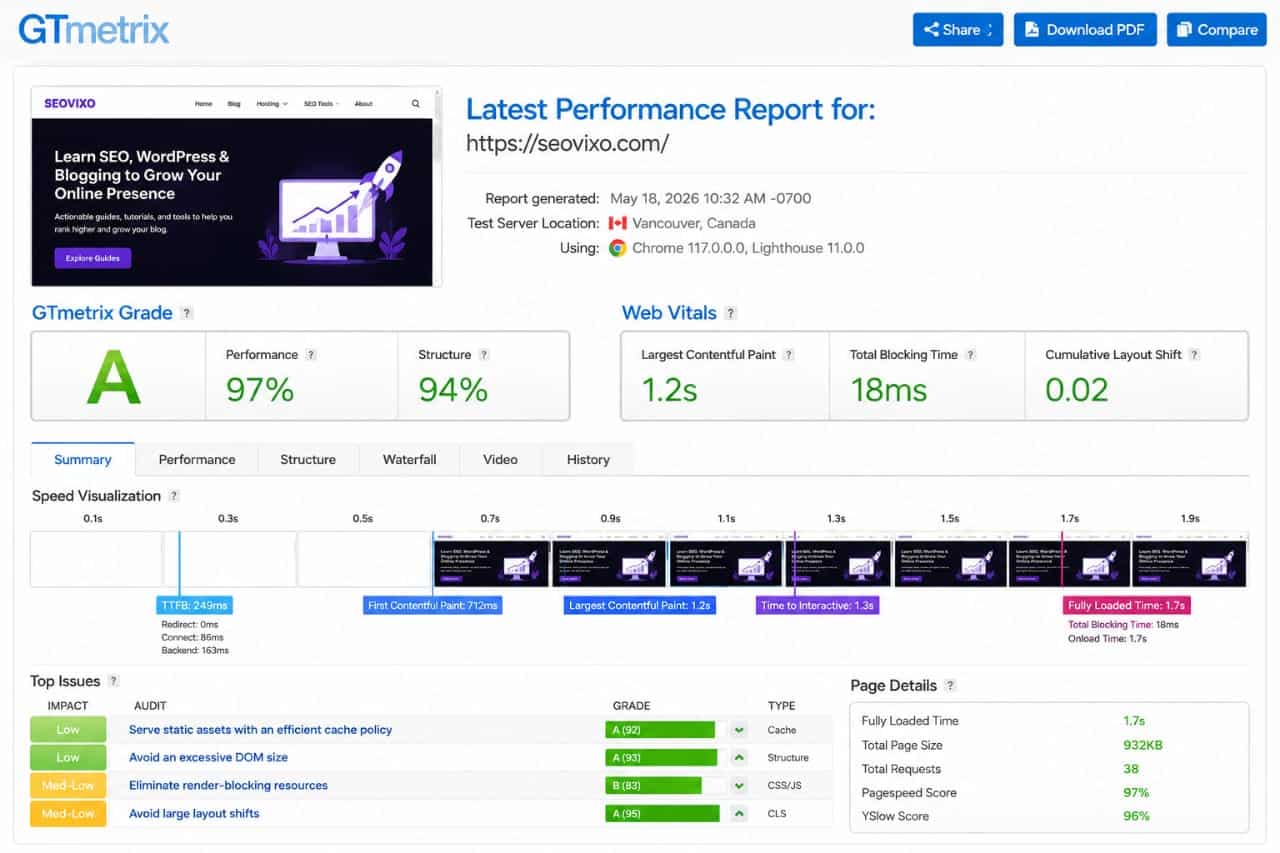
Improving Core Web Vitals often requires optimizing images, reducing JavaScript execution, reserving space for media elements, and improving overall page structure.
| Metric | What It Measures |
|---|---|
| LCP | Loading performance |
| INP | User interaction responsiveness |
| CLS | Visual stability |
Improving these metrics often has a greater impact on user experience than simply installing another caching plugin.
12. You're Testing Performance Incorrectly
Many website owners enable caching and immediately run a speed test without clearing the cache or testing from multiple locations.
For accurate results:
- Clear all caches before testing.
- Test multiple pages, not just the homepage.
- Compare mobile and desktop results.
- Use more than one performance testing tool.
- Test several times to account for network variations.
Performance testing should focus on identifying bottlenecks rather than chasing a perfect score.
Common Speed Optimization Mistakes
- Installing multiple caching plugins at the same time.
- Ignoring image optimization.
- Using too many third-party scripts.
- Running outdated PHP versions.
- Choosing low-quality hosting.
- Leaving unused plugins installed.
- Ignoring Core Web Vitals.
- Never updating WordPress, themes, or plugins.
Fixing these issues usually delivers better long-term performance than relying on caching alone.
When optimizing a WordPress website, I avoid making multiple changes at once. Instead, I test one improvement at a time—such as compressing images, reducing unnecessary plugins, optimizing the database, or adjusting Cloudflare settings—and then measure the results. This step-by-step approach makes it much easier to identify what actually improves performance and prevents new issues from being introduced.
Complete WordPress Speed Optimization Checklist
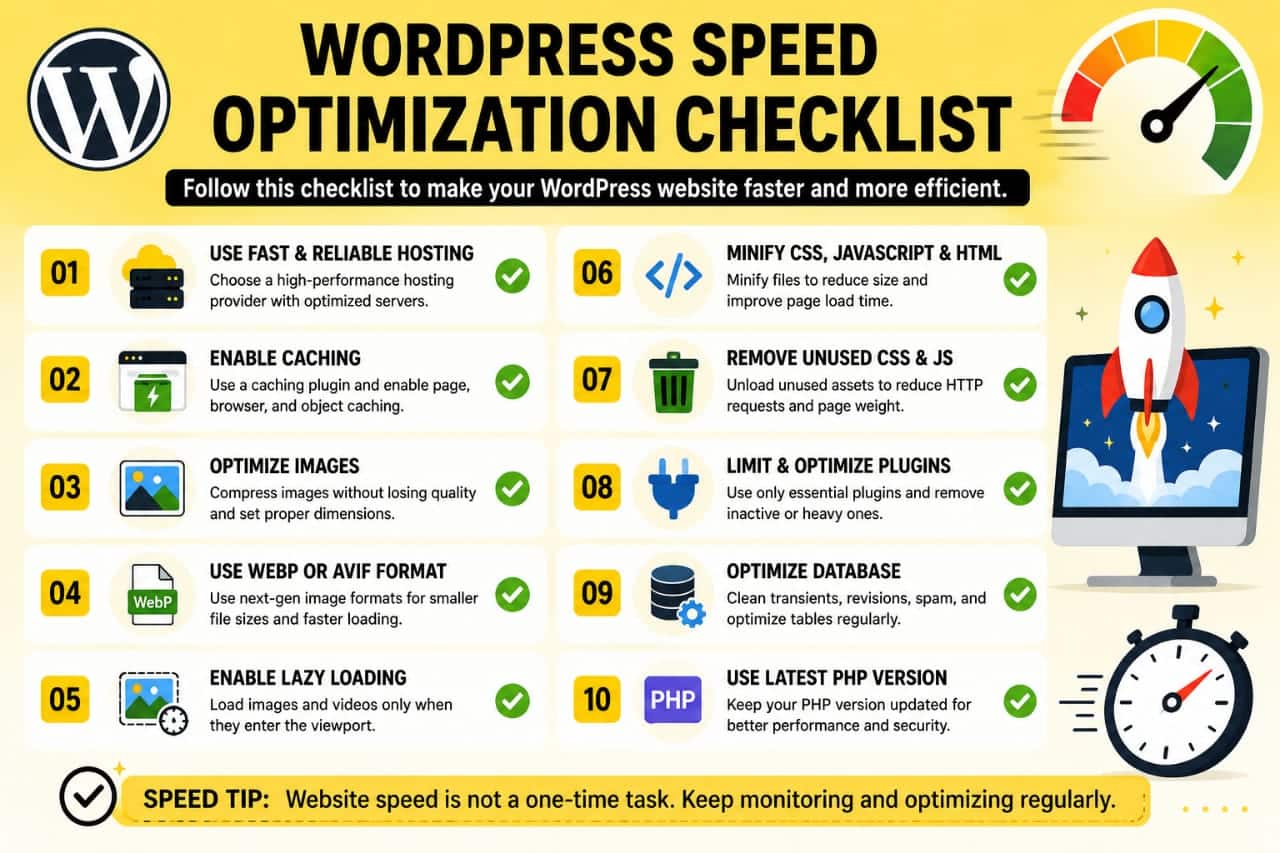
If your website is still slow after enabling caching, it's time to review every part of your performance strategy. Use the checklist below to identify and fix the most common bottlenecks.
- Choose fast and reliable WordPress hosting.
- Enable page caching.
- Optimize and compress images.
- Use WebP or AVIF image formats where possible.
- Enable lazy loading for images and videos.
- Minify CSS and JavaScript files.
- Remove unused CSS and JavaScript.
- Reduce the number of active plugins.
- Keep WordPress, themes, and plugins updated.
- Optimize your database regularly.
- Use a properly configured CDN.
- Enable GZIP or Brotli compression.
- Upgrade to the latest stable PHP version.
- Monitor Core Web Vitals regularly.
- Review third-party scripts and remove unnecessary ones.
Improving website speed is usually the result of several small optimizations working together rather than relying on a single plugin.
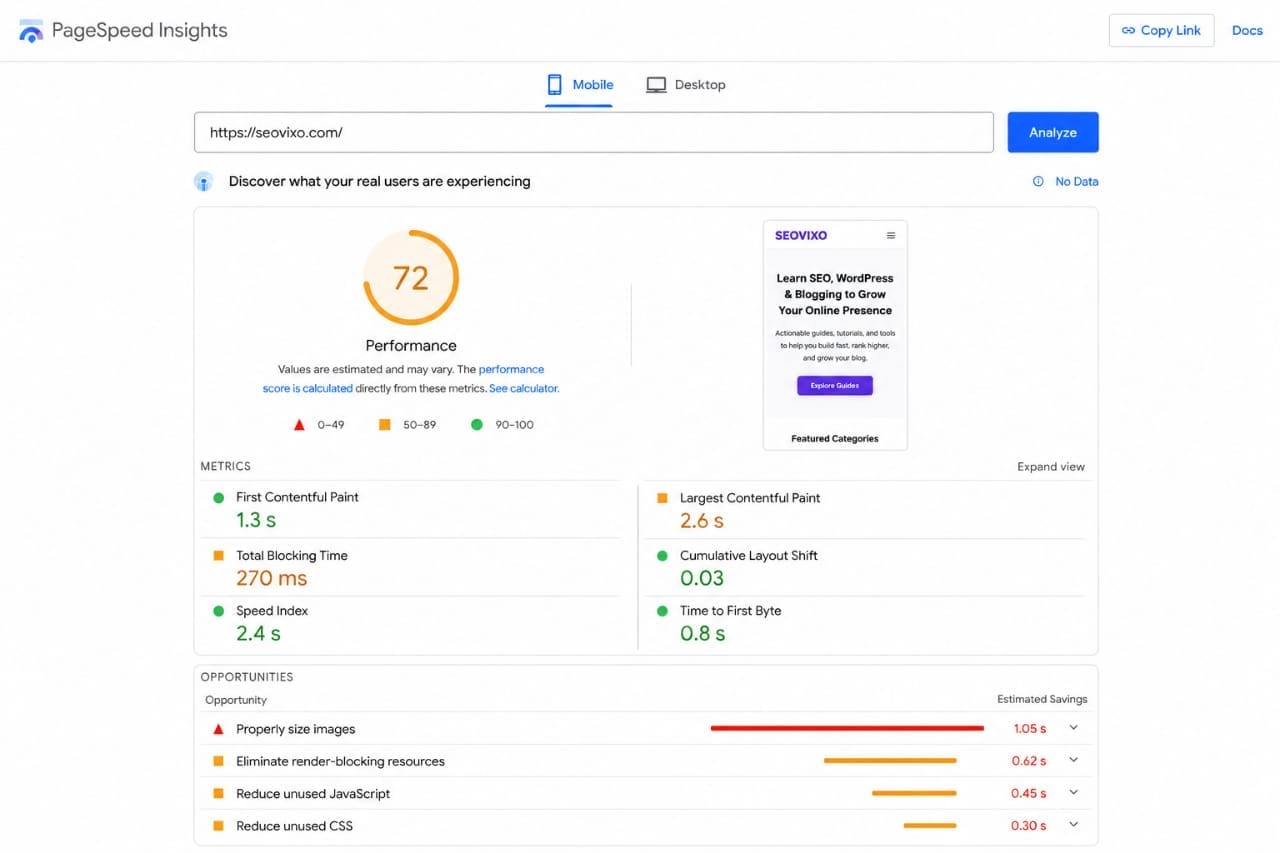
Best Tools to Test Your Website Speed
Performance testing tools help you identify exactly what's slowing down your website. Instead of guessing, use these tools to measure loading times and find optimization opportunities.
| Tool | Best For |
|---|---|
| Google PageSpeed Insights | Core Web Vitals analysis |
| GTmetrix | Performance reports and waterfall analysis |
| Pingdom Tools | Page load monitoring |
| WebPageTest | Advanced performance testing |
| Chrome DevTools | Developer performance debugging |
Testing your website with multiple tools provides a more complete picture because each one measures performance slightly differently.
Build a Long-Term Performance Strategy
Website speed isn't something you optimize once and then forget. Every new plugin, image, theme update, or third-party script can affect performance over time.
Create a regular maintenance routine by:
- Checking Core Web Vitals every month.
- Updating WordPress and plugins promptly.
- Reviewing plugin performance.
- Cleaning the database periodically.
- Optimizing newly uploaded images.
- Testing your website after major changes.
Regular maintenance helps prevent performance issues before they become noticeable to visitors.
When Should You Upgrade Your Hosting?
If you've optimized images, reduced plugins, configured caching, and improved your website structure but performance is still poor, your hosting may be the limiting factor.
Signs it's time to upgrade include:
- Consistently high TTFB.
- Frequent CPU or memory limits.
- Slow admin dashboard.
- Traffic spikes causing downtime.
- Poor server response during busy hours.
Moving to higher-quality hosting often provides noticeable speed improvements, especially for growing websites with increasing traffic.
Final Verdict
If your WordPress website is slow even with caching enabled, don't assume the caching plugin has failed. In most cases, caching is working correctly—the real issue lies somewhere else in your website's performance stack.
Fast websites are built through a combination of reliable hosting, optimized images, lightweight themes, efficient plugins, clean databases, properly configured CDNs, and ongoing maintenance.
Rather than searching for another caching plugin, focus on identifying your biggest performance bottleneck first. Solving one major issue at a time usually produces better results than making dozens of random changes.
By following the recommendations in this guide, you'll build a faster, more reliable WordPress website that provides a better experience for both visitors and search engines.
Frequently Asked Questions
Why is my WordPress website still slow after installing a caching plugin?
Caching improves server efficiency, but it doesn't fix slow hosting, oversized images, heavy JavaScript, database issues, or third-party scripts.
Can too many plugins slow down WordPress?
Yes. Poorly coded or unnecessary plugins can increase server load, database queries, and the number of files your visitors need to download.
Does better hosting improve website speed?
Absolutely. A reliable hosting provider with modern hardware and optimized server software can significantly reduce response times and improve overall performance.
How often should I optimize my WordPress database?
For most websites, reviewing and optimizing the database every one to three months is a good practice, depending on how frequently you publish content.
Should I use a CDN if I already have caching?
Yes. A CDN complements caching by serving static assets from servers closer to your visitors, reducing latency and improving load times.
What's the best way to improve WordPress speed?
The best approach is to optimize your hosting, images, plugins, database, Core Web Vitals, and CDN together instead of relying on a single performance plugin.
📚 Related WordPress Guides
Want to optimize your WordPress website even further? These beginner-friendly guides will help you improve speed, SEO, and mobile performance.